Sharp PN-E421 Instrukcja Właściciela Strona 74
- Strona / 117
- Spis treści
- BOOKMARKI

- OPERATION MANUAL 1
- Contents 2
- Creating/Editing Schedules 3
- Panel Management and Option 3
- Distributing schedules 3
- Schedule Management 3
- Introduction 5
- Trademarks 6
- How to read this manual 6
- Denitions 7
- System operation precautions 7
- Program distribution workow 9
- Server Scheduler 10
- Installing/Launching 11
- Auto login settings 15
- Screen saver settings 16
- Power control 17
- IME Toolbar settings 19
- Windows Update settings 20
- Resident application settings 21
- Personal rewall settings 22
- ●Closing the Launcher window 26
- ●The Launcher window 26
- Program Creation/Editing 28
- 2) Menus 29
- 3) Toolbar 29
- 5) Settings window 29
- Creating programs 30
- ●Positioning content (Layout) 31
- Program Editor 32
- Using the grid 33
- Display priority order 33
- Content preview 36
- Playlists 36
- Properties of content 37
- ●Setting the scroll message 38
- Creating scroll message les 40
- ●Setting audio and music 44
- ●Setting the PIP window 45
- ●Saving a program 45
- Save program as 46
- Program thumbnails 46
- Program Folder 46
- ●Opening a program 47
- ●Checking a program 47
- ●Deleting a program 48
- Exporting a program 50
- Importing a program 51
- Conditional Content 52
- Conditional Content Editor 53
- Creating Conditional Content 54
- Creating/Editing a Timetable 60
- 5) Program/Panel Control list 61
- 6) Timetable 61
- Creating a timetable 62
- Timetable Editor 63
- ●Adjusting a timetable 65
- ●Saving a timetable 66
- ●Opening a timetable 66
- ●Checking a timetable 67
- ●Deleting a timetable 67
- Exporting a timetable 68
- Importing a timetable 69
- 4) “Timetable” list 71
- 5) Calendar 71
- Creating a schedule 72
- The calendar 73
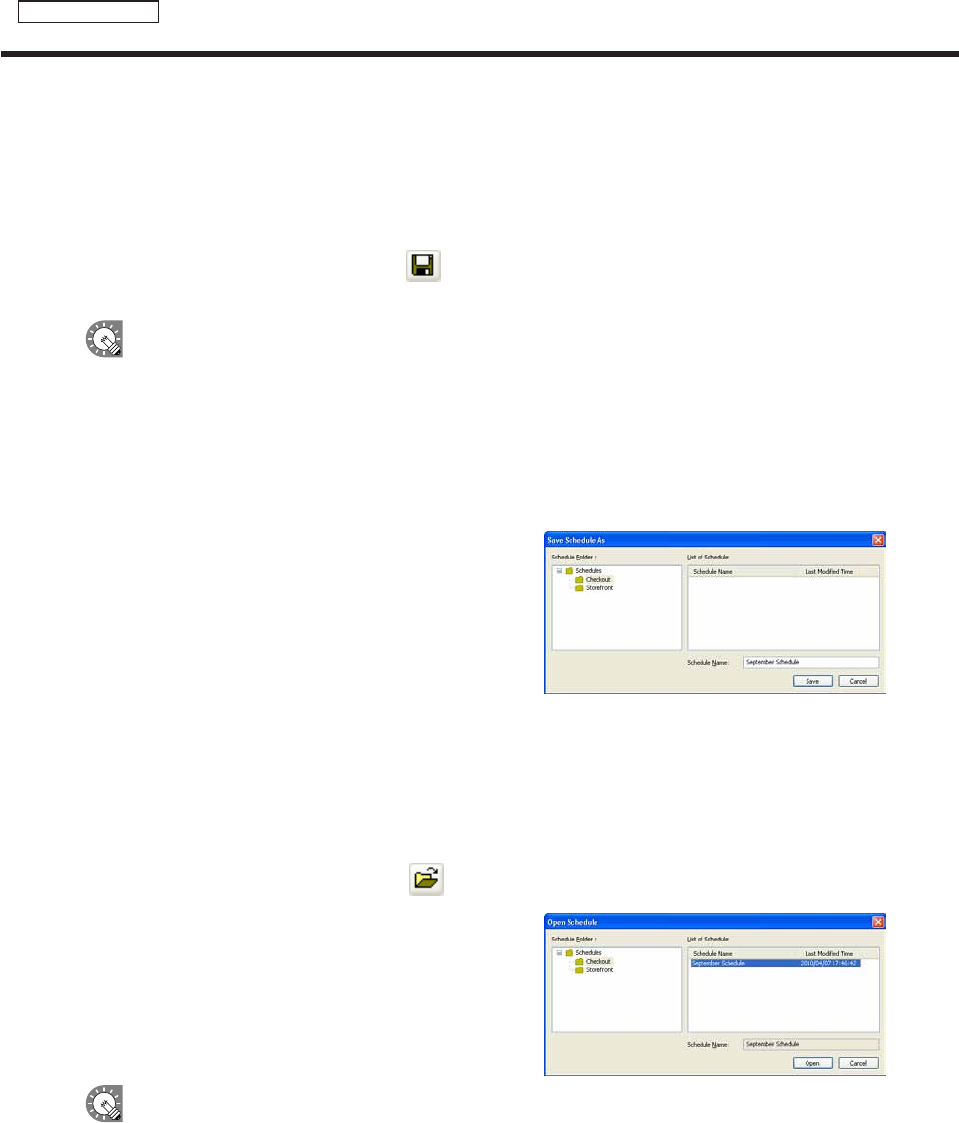
- ●Saving a schedule 74
- ●Opening a schedule 74
- ●Deleting a schedule 75
- ●Changing schedule name 75
- Exporting a schedule 76
- Importing a schedule 77
- ●Adding/editing a panel 79
- ●Adding/editing a group 80
- ●Controlling a panel manually 81
- ●Deleting a panel or group 81
- ●Launching Option 82
- ●Checking version information 82
- Schedule Distribution Tool 86
- ●Distributing to your own PC 87
- Displaying break-in programs 90
- ●List of Distribution Log 95
- Updating 96
- FTP Server 98
- Client Scheduler 99
- FTP Server/Client Scheduler 100
- Version information 104
- Exiting Client Scheduler 104
- Program Viewer 105
- Key/Mouse Monitoring 106
- Key/Mouse Monitoring Tool 107
- Monitoring status 109
- 2) Toolbar 110
- 3) Group tree 111
- 4) Panel list 111
- Status Monitoring Tool 112
- ●Controlling target PC power 113
- ●Changing thumbnail size 115
- PN-SS01/SS02/SV0110D(2) 117
Powiązane produkty i podręczniki dla Oprogramowanie Sharp PN-E421
 (63 strony)


 (148 strony)
(420 strony)
(43 strony)
(152 strony)
(148 strony)
(420 strony)
(43 strony)
(152 strony)

© 2020, manymanuals.pl. Wszelkie prawa zastrzeżone. | 0.032 s |
 Manymanuals.com
 Manymanuals.de
 Manymanuals.fr
 Manymanuals.it
 Manymanuals.pl
 Manymanuals.cz
 Manymanuals.es
 Manymanuals-pt.com
Komentarze do niniejszej Instrukcji