Sharp SF-461 Dokumentacja Strona 1
Przeglądaj online lub pobierz Dokumentacja dla Kopiarki Sharp SF-461. Sharp SF-461 Specifications Instrukcja obsługi
- Strona / 104
- Spis treści
- ROZWIĄZYWANIE PROBLEMÓW
- BOOKMARKI

- CINSE1794FC51 2
- CONTENTS Page 3
- INTRODUCTION 4
- USING THIS MANUAL 4
- Lock Release 5
- Adjuster 5
- Power on 6
- Power off 6
- INFORMATION FUNCTION 7
- AUDITING ACCOUNTS 8
- NORMAL COPYING 10
- MAKING COPIES 12
- Automatic 14
- REDUCTION/ENLARGEMENT/ZOOM 15
- DUAL PAGE 16
- ERASECOVERS 17
- INFORMATION 18
- MARGIN SHIFT 19
- SCROLL DISPLAY 20
- Storing a job program 22
- JOB MEMORY 23
- Deleting a stored job program 23
- Recalling a job program 23
- INTERRUPT 24
- ORDINARY PAPER 25
- SPECIAL PAPERS 25
- Loading copy paper 26
- 500-sheet paper drawer 26
- Paper size plate 27
- ADDING TONER 28
- USED TONER DISPOSAL 30
- STORAGE OF SUPPLIES 31
- A MISFEED HAS OCCURRED 32
- CLEAR INDICATED AREA 32
- INSTRUCTIONS 32
- MISFEED REMOVAL 33
- Misfeed in a paper tray 33
- Misfeed in the transport area 34
- Exit area cover 36
- Misfeed in the duplex module 37
- TROUBLE? 38
- Troubleshooting 38
- TROUBLESHOOTING 39
- Self-diagnostic function 39
- PART NAMES AND FUNCTIONS 40
- Interior 41
- Inch system 42
- USER MAINTENANCE 44
- MAINTENANCE REQUIRED 45
- SPECIFICATIONS 46
- OPTIONAL 48
- EQUIPMENT 48
- SYSTEM CONFIGURATION 50
- PART NAMES 51
- Specifications 51
- RADF (SF-A58) 52
- Using the RADF 52
- 20-bin sorter (SF-S15) 61
- 20-bin staple sorter (SF-S56) 61
- SORTER CAPACITIES 62
- 20-BIN STAPLE SORTER (SF-S56) 63
- Staple sort (SF-S56 only) 63
- Using the document glass 63
- Using the RADF 64
- Stapling location 65
- Staple cartridge replacement 66
- Staple jam removal 68
- 20-BIN SORTER (SF-S15) 70
- SF-S15 20-bin sorter 70
- Misfeed removal 70
- SF-S56 20-bin staple sorter 71
- SF-D24 SF-D23 76
- CONTENTS 79
- OPERATOR’S 79
- KEY OPERATOR PROGRAMS 80
- P10 Auditing Mode 84
- P13 Resetting Account 84
- To reset all accounts 85
- To reset a single account 85
- P14 Account Number Control 85
- To register accounts 85
- To delete accounts 86
- To change an account number 86
- P16 Account Limit Setting 87
- To set a limit 87
- To cancel a limit 88
- To cancel all limits 88
- P18 Account Number Security 88
- P20 Auto Exposure Adjust 89
- P21 Auto Power Shut-off Timer 89
- P22 Toner Save Mode 89
- P23 Auto Clear Setting 90
- P27 Erase Width Adjustment 91
- P29 Total Copy Count 92
- P28 Initial Status Setting 92
- P31 Preheat Mode Setting 93
- P45 Message Time Setting 94
- P46 Require Key Operator Code 94
- P47 Stream Feeding Mode 94
- P76 Disabling of Stapler 97
- P77 Disabling of Covers 97
- KEY OPERATOR ASSISTANCE CALL 100
- KEY OPERATOR CODE NUMBER: 101
- FACTORY SETTING 101
- PRINTED IN JAPAN 102
- SHARP CORPORATION 104
Podsumowanie treści
MODELSF-2540Downloaded From ManualsPrinter.com Manuals
8MAKING COPIESNormal copyingNORMAL COPYING●For manual copy density adjustment, press the EXPOSUREkey to select MANUAL and adjust with the LIGHT and DA
98KEY OPERATOR PROGRAMSKey operator programs–KEY OPERATOR ASSISTANCE CALLWhen the copier is in need of service or care not usually performedby general
99KEY OPERATOR PROGRAMSKey operator programsThe following is the factory setting of the Key Operator CodeNumber, which must be used to access the Key
CINSE1794FC51PRINTED IN JAPANDSC32000FDownloaded From ManualsPrinter.com Manuals
Downloaded From ManualsPrinter.com Manuals
SF-2540SHARP CORPORATIONDownloaded From ManualsPrinter.com Manuals
9MAKING COPIESNORMAL COPYINGNormal copying1Place the first original face down on the documentglass and close the document cover.2Press the ORIGINAL TO
10MAKING COPIESUSING THE MANUAL FEED TRAY (special paper)The manual feed tray is used to copy onto transparency film, labels,tracing paper, and other
11MAKING COPIESTwo-sided copying with manual feed trayTwo-sided copies can be made using the manual feed tray.USING THE MANUAL FEED TRAY (special pape
12MAKING COPIESREDUCTION/ENLARGEMENT/ZOOMReduction and enlargement ratios can be selected eitherautomatically with the AUTO IMAGE key or manually with
13MAKING COPIESManual1Place the original face down on the document glassand close the document cover.2Use the reduction ( ), enlargement ( ) andZOOM k
14MAKING COPIESDUAL PAGE COPYINGThe DUAL PAGE COPY feature produces separate copies of twodocuments placed side by side on the document glass. It ises
15MAKING COPIESERASEThis copier has an edge erase mode and a centre erase mode.●Edge erase can be used to eliminate shadow lines around theedges of co
16MAKING COPIESERASE3If you want to change the erase mode, press theSCROLL DISPLAY key.●The following message will appear.●If a MARGIN SHIFT mode is u
17MAKING COPIESMARGIN SHIFTThe MARGIN SHIFT feature, in its initial setting, automatically shiftsthe text or image to the right on one-sided copies. I
SF-2530In some areas, the “POWER” switch positions are marked “I” and “ ” on the copier instead of “ON” and “OFF”.The symbol “ ” denotes the copie
18MAKING COPIESMARGIN SHIFTMargin shift3If you want to change the shift amount and/or shiftdirection, press the SCROLL DISPLAY key.●The following mess
19MAKING COPIESMARGIN SHIFT5Select the shift direction using the 10-key pad.●Selected shift amounts and shift direction will return to the initialsett
20MAKING COPIESJOB MEMORYFrequently used job programs can be stored in one of nine storageregisters. This is convenient for quick job recall without l
21MAKING COPIESJOB MEMORYJob memoryDeleting a stored job program1Follow steps 1 and 2 in “Storing a job program” on theprevious page.2Press key 2 on t
22MAKING COPIESInterrupting a copy run1Press the INTERRUPT key.●When an optional reversing automatic document feeder isbeing used, the copier will sto
23SUPPLIESORDINARY PAPER●Automatic feeding from the paper trays ormanual feed tray (max. 50 sheets)●Manual feed tray (single sheet feed)* A5 (5-1/2&qu
24SUPPLIESPAPERLoading copy paper“OPEN TRAY AND ADD PAPER.” will be displayedwhen there is no copy paper in a selected paper feedstation.When a s
25SUPPLIESPAPERPaperChanging the lower paper tray’s inner cassetteThe lower paper tray can accommodate six different paper sizes.To change the paper s
26SUPPLIESADDING TONERThe message “TONER SUPPLY IS LOW. PRESS THE KEYFOR INSTRUCTIONS.” will appear in the message display beforethe toner supply is
27SUPPLIES4Place the new toner cartridge with the tabs in thenotches as shown.5Slide the toner cartridge along the guides over thetoner hopper.6Hold t
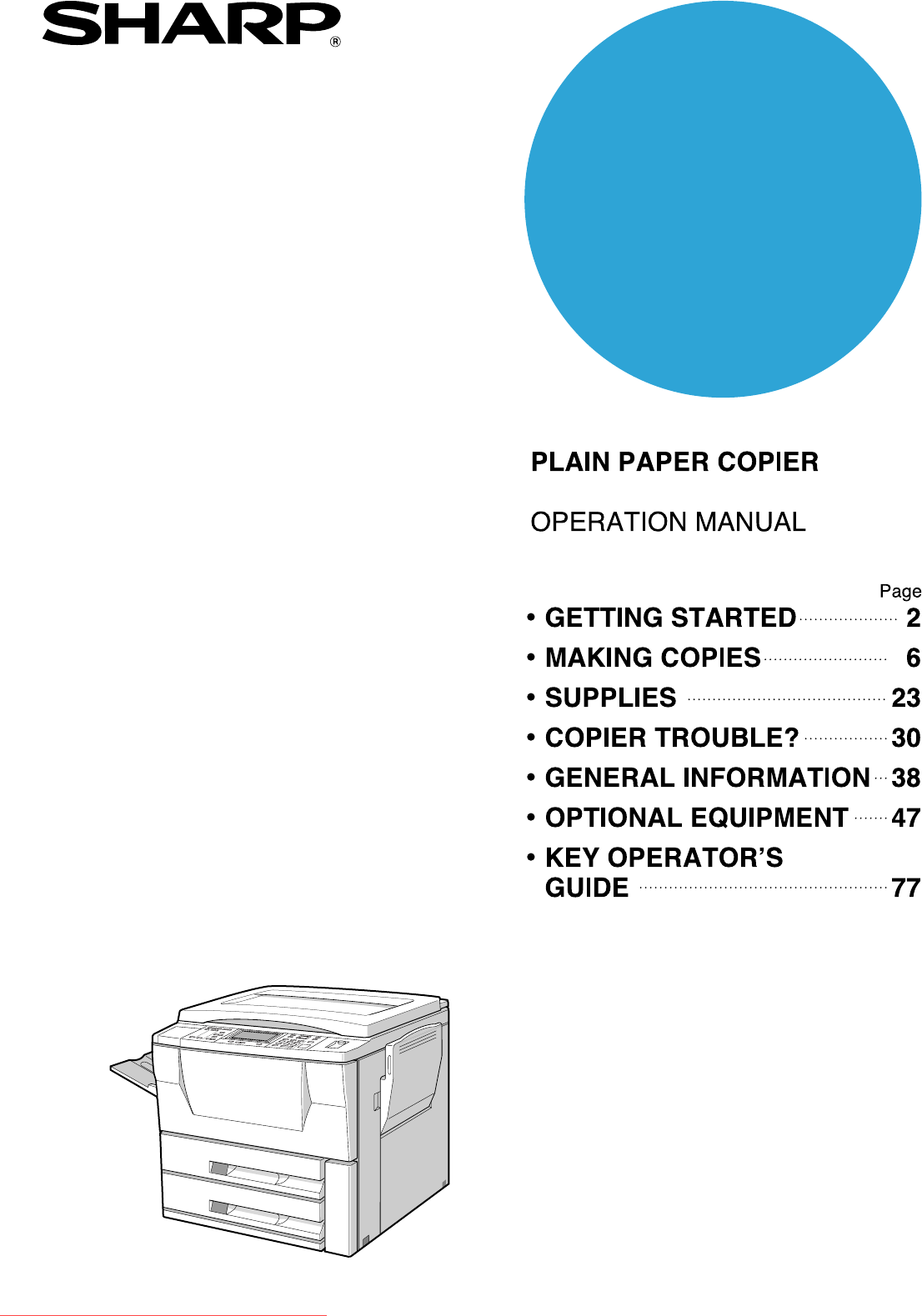
CONTENTS PageGETTING STARTED●INTRODUCTION ... 2●USING THIS MANUAL ... 2●INSTALLATION REQUIREMENTS
28SUPPLIES1Open the toner collecting container cover.2Disengage and remove the container from the copierby pushing downward and then pulling it out.●T
29SUPPLIESSTORAGE OF SUPPLIESStandard SF-2540 supplies replaced by the user include copypaper, toner, toner collecting container, and staple cartridge
30COPIERTROUBLE?MISFEED REMOVALWhen a misfeed occurs, the copier will stop.The message “A MISFEED HAS OCCURRED.CLEAR INDICATED AREA. PRESS THE KEY FOR
31COPIERTROUBLE?MISFEED REMOVALMisfeed removal2Open and close the front cover to cancel the misfeeddisplay.Misfeed in a paper tray1Open the side cover
32COPIERTROUBLE?MISFEED REMOVALMisfeed removal4Close the paper tray and the side cover.●Confirm that the misfeed display is cleared.Misfeed in the tra
33COPIERTROUBLE?MISFEED REMOVALMisfeed removal4Turn the transport lever back into place.5Close the front cover.●Confirm that the misfeed display is cl
34COPIERTROUBLE?MISFEED REMOVALMisfeed removal3If the misfed paper is in the exit area, open the exit areacover carefully.●Open the cover by pulling t
35COPIERTROUBLE?MISFEED REMOVALMisfeed removalMisfeed in the duplex module●The duplex module is optional.NOTE:If any other misfeed locations are indic
36COPIERTROUBLE?TROUBLESHOOTINGAlways check the message display whenever the copier stops oroperation is not possible. The messages will give you easy
37COPIERTROUBLE?TROUBLESHOOTINGTroubleshootingProblemSolution●Non-standard paper used?●Is paper properly installed?Use standard paper.If using special
2GETTING STARTEDIntroduction/Using this manualINTRODUCTIONThe SF-2540 has been designed to give high productivity while offeringconvenient features.Am
38GENERALINFORMATIONPART NAMES AND FUNCTIONSExteriorPart names and functionsq Document holderw Exit trayFinished copies are deposited in the exit tray
39GENERALINFORMATIONPART NAMES AND FUNCTIONSInteriorPart names and functions!8 Fusing unitThe fusing unit is hot. Exercise care in this area.!9 Transp
40GENERALINFORMATIONPART NAMES AND FUNCTIONSPart names and functionsOperation Panelq COVERS key and indicator (p.55)Press to select the covers feature
41GENERALINFORMATIONPART NAMES AND FUNCTIONSPart names and functions!6 ZOOM keys (p.13)Used to select any enlargement or reduction copyratio from 50%
42GENERALINFORMATIONUSER MAINTENANCEThe document glass and document cover must be kept clean toavoid dirty areas from being copied onto the copies.Use
43GENERALINFORMATIONMaintenance requiredMAINTENANCE REQUIREDWhen the message “READY TO COPY. (MAINTENANCEREQUIRED : )” appears, service by an authori
44GENERALINFORMATIONSPECIFICATIONSSpecificationsCOPIERType DesktopCopy system Dry, electrostatic transfer systemOriginals Sheets, bound documentsOrigi
45GENERALINFORMATIONSPECIFICATIONSSpecificationsOverall dimensions 1205 mm (W) x 650 mm (D)(47-29/64" (W) x 25-19/32" (D))Weight Approx. 67.
46OPTIONALEQUIPMENTMEMODownloaded From ManualsPrinter.com Manuals
47OPTIONALEQUIPMENTCONTENTS Page●SYSTEM CONFIGURATION ... 48●REVERSING AUTOMATIC DOCUMENT FEEDER (SF-A58)... 49●Par
3GETTING STARTEDInstallation requirements/CautionsINSTALLATION REQUIREMENTSTo ensure safety and proper machine performance, please note thefollowing b
48OPTIONALEQUIPMENTSYSTEM CONFIGURATIONThe options which are available for the SF-2540 are shown below.●Card counter (SF-EA11)●Auditor (SF-EA12)●Count
49OPTIONALEQUIPMENTREVERSING AUTOMATIC DOCUMENT FEEDER (SF-A58)The reversing automatic document feeder (RADF) will handle A5 toA3 (5-1/2" x 8-1/2
50OPTIONALEQUIPMENTRADF (SF-A58)NOTES:●Before loading originals into the document feedertray, be sure to remove any staples or paper clipsfrom them. T
51OPTIONALEQUIPMENTRADF (SF-A58)2Ensure that the 1-sided to 1-sided copying mode isselected in the ORIGINAL TO COPY section of theoperation panel.●Whe
52OPTIONALEQUIPMENTRADF (SF-A58)RADF (SF-A58)9START10APLERTOUPPRE-COUNTORIGINALS3Enter the desired number of copies.●The maximum number of copies in t
53OPTIONALEQUIPMENTRADF (SF-A58)3Enter the desired number of copies.●The maximum number of copies in the two-sided copy mode is50 for A5, A4, and A4R
54OPTIONALEQUIPMENTRADF (SF-A58)1Adjust the original guides to the size of the originalsand set the originals face up in the document feedertray.●The
55OPTIONALEQUIPMENTRADF (SF-A58)RADF (SF-A58) CoversThe COVERS feature is used to place covers on the front, back, orboth the front and back of multip
56OPTIONALEQUIPMENTRADF (SF-A58)5Load the cover stock into the manual feed tray, makingsure that the cover stock is the same size as the copypaper.●Th
57OPTIONALEQUIPMENTRADF (SF-A58)RADF (SF-A58)Location CLocation BLocation AMisfeed removalWhen the RADF misfeeds an original sheet, the copier will st
4GETTING STARTEDPower on and offPOWER ON AND OFFThe power switch is located on the left side of the copier. When thepower switch is turned to the “ON”
58OPTIONALEQUIPMENT20-BIN SORTER (SF-S15)20-BIN STAPLE SORTER (SF-S56)The SF-S15 20-Bin Sorter has two sorter modes for different copy-ing jobs: one
59OPTIONALEQUIPMENT20-BIN SORTER (SF-S15)/20-BIN STAPLE SORTER (SF-S56)20-bin sorter (SF-S15)20-bin staple sorter (SF-S56)NON-SORTWhen none of the thr
60OPTIONALEQUIPMENTMax. No. Max. No.Mode Paper size of of copiesoriginals to be setNON- Min.: A5 (5-1/2" x 8-1/2") – 100SORT Max.: A3 (11&qu
61OPTIONALEQUIPMENT20-BIN STAPLE SORTER (SF-S56)20-bin staple sorter (SF-S56)Staple sort (SF-S56 only)The STAPLE SORT mode staples copies of A4, A4R,
62OPTIONALEQUIPMENT20-BIN STAPLE SORTER (SF-S56)20-bin staple sorter (SF-S56)Using the RADF1Set the originals in the document feeder tray face upwith
63OPTIONALEQUIPMENT20-BIN STAPLE SORTER (SF-S56)20-bin staple sorter (SF-S56)1Align the edges of the copies to be stapled.2Place the set of copies int
64OPTIONALEQUIPMENT20-BIN STAPLE SORTER (SF-S56)1Open the stapler cover.2Lift the release lever and pull out the staple box.●Lift the release lever to
65OPTIONALEQUIPMENT20-BIN STAPLE SORTER (SF-S56)20-bin staple sorter (SF-S56)5Remove the rear paper and tape from the cartridge.●Pull them straight. I
66OPTIONALEQUIPMENT1Open the stapler cover.2Lift the release lever and pull out the staple box.●Lift the release lever to unlock the staple box. Then
67OPTIONALEQUIPMENT5Insert the staple box into the stapler unit until it clicksin place.6Close the stapler cover.7Following the stapling procedure on
5GETTING STARTEDINFORMATION FUNCTIONThe information function provides a quick reference guide to the useof the various features and functions of this
68OPTIONALEQUIPMENT20-bin sorter (SF-S15)20-BIN SORTER (SF-S15)SF-S15 20-bin sorter1Open the top cover and remove the misfed paper.2Close the top cov
69OPTIONALEQUIPMENT20-BIN STAPLE SORTER (SF-S56)20-bin staple sorter (SF-S56)SF-S56 20-bin staple sorter1Push the sorter release button and slide the
70OPTIONALEQUIPMENT20-BIN SORTER (SF-S15)/20-BIN STAPLE SORTER (SF-S56)20-bin sorter (SF-S15)20-bin staple sorter (SF-S56)SpecificationsSF-S15No. of b
71OPTIONALEQUIPMENTSTAND/3000-SHEET PAPER DRAWER (SF-D23)STAND/500-SHEET PAPER DRAWER (SF-D24)These optional stands with paper trays provide the conve
72OPTIONALEQUIPMENTSTAND/3000-SHEET PAPER DRAWER (SF-D23)/STAND/500-SHEET PAPER DRAWER (SF-D24)Loading copy paperThe size of the copy paper for the pa
73OPTIONALEQUIPMENTSTAND/3000-SHEET PAPER DRAWER (SF-D23)/STAND/500-SHEET PAPER DRAWER (SF-D24)Stand/3000-sheet paper drawer (SF-D23)Stand/500-sheet p
74OPTIONALEQUIPMENTMisfeed removalThe copier will stop when a misfeed occurs.The message “A MISFEED HAS OCCURRED. CLEAR INDICATEDAREA. PRESS THE KEY
75OPTIONALEQUIPMENTSTAND/3000-SHEET PAPER DRAWER (SF-D23)/STAND/500-SHEET PAPER DRAWER (SF-D24)Stand/3000-sheet paper drawer (SF-D23)Stand/500-sheet p
76OPTIONALEQUIPMENTMEMODownloaded From ManualsPrinter.com Manuals
77KEY OPERATOR PROGRAMSKey operator programsThis KEY OPERATOR’S GUIDE section contains informationon all of the programs used by the key operator. The
6MAKING COPIESAUDITING ACCOUNTSIf this copier has been programmed in the auditing mode, it will notfunction until an assigned 5-digit account number h
78KEY OPERATOR PROGRAMSKey operator programs123456/////INTERRUPT0CAUDIT CLEARISPLAYMATION12345670C89SAUDIT CLEAR9STARTKEY OPERATOR CODE NUMBER (P19)A
79KEY OPERATOR PROGRAMSKey operator programsKEY OPERATOR PROGRAMSA complete list of all key operator programs is provided below. These programs canonl
80KEY OPERATOR PROGRAMSKey operator programsProgram PageCode No. Program Name Function No.P31 Preheat Mode Sets the time that elapses before the copie
81KEY OPERATOR PROGRAMSKey operator programsUsing the key operator programsPress the clear ( ) key, the INTERRUPT key, andthe clear key again.●The fol
82KEY OPERATOR PROGRAMSKey operator programsP10 Auditing ModeProgram P10 is used to enable or disable the basic auditing mode.When disabled, the messa
83KEY OPERATOR PROGRAMSKey operator programsTo reset all accountsPress key 1.To reset a single account1. Press key 2.●The following message will appea
84KEY OPERATOR PROGRAMSKey operator programsTo delete accounts1. Press key 2.●The following message will appear.DELETE ACCOUNT #: 1.ALL ACCOUNTS
85KEY OPERATOR PROGRAMSKey operator programsTo display all registered account numbers1. Press key 4.●The following message will appear.ACCOUNT NUMBER
86KEY OPERATOR PROGRAMSKey operator programsTo cancel a limit1. Press key 2.●The following message will appear.CANCEL LIMITS: 1.ALL ACCOUNTS
87KEY OPERATOR PROGRAMSKey operator programsP19 Key Operator Code Number ChangeSee page 78, KEY OPERATOR CODE NUMBER.P20 Auto Exposure AdjustUse P20 t
7MAKING COPIESNormal copyingNORMAL COPYINGUse the document glass for copying single originals and bounddocuments. If an optional reversing automatic d
88KEY OPERATOR PROGRAMSKey operator programsP23 Auto Clear SettingUse P23 to set the time interval to return the copier to the initialsettings after t
89KEY OPERATOR PROGRAMSKey operator programsP25 Setting a Maximum Number of CopiesUse P25 to limit the maximum number of copies per copy run whichcan
90KEY OPERATOR PROGRAMSKey operator programsP28 Initial Status SettingThe copier will assume the initial settings when it is turned on, whenthe CLEAR
91KEY OPERATOR PROGRAMSKey operator programsP31 Preheat Mode SettingProgram P31 is used to set the time that elapses before the copierenters the prehe
92KEY OPERATOR PROGRAMSKey operator programsP45 Message Time SettingProgram P45 is used to adjust the length of time that messages aredisplayed in the
93KEY OPERATOR PROGRAMSKey operator programsP52 Override Sorter Bin Capacity LimitProgram P52 is used to control operation in case of bin capacityover
94KEY OPERATOR PROGRAMSKey operator programsP72 Prohibiting of Manual Feed Tray in Duplex CopyProgram P72 is used to disable the use of the manual fee
95KEY OPERATOR PROGRAMSKey operator programsP75 Disabling of Duplex CopyingProgram P75 is used to enable or disable the optional duplexsystem. If a ma
96KEY OPERATOR PROGRAMSKey operator programsP83 Enabling of PC/Modem AccessProgram P83 is used to determine whether persons other thanpersons who know
97KEY OPERATOR PROGRAMSKey operator programsP90 Display the List of All P CodesProgram P90 is used to sequentially display all programs.The programs i
Powiązane produkty i podręczniki dla Kopiarki Sharp SF-461
 (12 strony)
(4 strony)
(40 strony)
(12 strony)
(12 strony)
(88 strony)
(117 strony)
(12 strony)
(56 strony)
(44 strony)
(12 strony)
(4 strony)
(40 strony)
(12 strony)
(12 strony)
(88 strony)
(117 strony)
(12 strony)
(56 strony)
(44 strony)

 (47 strony)
(160 strony)
(79 strony)
(36 strony)
(16 strony)
(104 strony)
(183 strony)
(28 strony)
(47 strony)
(160 strony)
(79 strony)
(36 strony)
(16 strony)
(104 strony)
(183 strony)
(28 strony)
© 2020, manymanuals.pl. Wszelkie prawa zastrzeżone. | 0.019 s |
 Manymanuals.com
 Manymanuals.de
 Manymanuals.fr
 Manymanuals.it
 Manymanuals.pl
 Manymanuals.cz
 Manymanuals.es
 Manymanuals-pt.com
Komentarze do niniejszej Instrukcji