Sharp MX-3100N Instrukcja Użytkownika Strona 586
- Strona / 799
- Spis treści
- ROZWIĄZYWANIE PROBLEMÓW
- BOOKMARKI

- OPERATION GUIDE 1
- MAKE A COPY 2
- Reduce copy mistakes 4
- Envelopes and other 6
- 11" x 17" paper 6
- Tab Paper Transparency film 6
- Add the date or page numbers 7
- PRINT A DOCUMENT 10
- Conserve 11
- Print without a computer 12
- Print attractive output 13
- Print on this type of paper 15
- Add text or an image 16
- Other convenient functions 17
- SEND A FAX 18
- Send this type of document 20
- Send a clear document 22
- Save trouble 23
- Security is important 24
- Send a clear image 27
- Send a smaller file 30
- SAVE A JOB AND REUSE IT LATER 33
- Search for a file 34
- Organize my files 35
- MAINTAIN THE MACHINE 36
- Clean the machine 37
- ABOUT OPERATION GUIDE 38
- HOW TO USE THIS MANUAL 39
- Manual name Contents 40
- ABOUT OPERATION MANUAL 41
- CHAPTER 1 42
- BEFORE USING THE MACHINE 42
- MAINTENANCE 43
- INTERIOR 46
- SIDE AND BACK 48
- OPERATION PANEL 49
- TOUCH PANEL 51
- STATUS DISPLAY 53
- SYSTEM BAR 54
- TURNING THE POWER ON AND OFF 56
- ENERGY SAVE FUNCTIONS 57
- [POWER SAVE] KEY 57
- USER AUTHENTICATION 58
- HOME SCREEN 63
- ITEMS RECORDED IN THE JOB LOG 65
- LOADING PAPER 68
- USEABLE PAPER 69
- Paper that cannot be used 70
- Non-recommended paper 70
- TRAY SETTINGS FOR TRAY 1 TO 4 71
- CAPACITY TRAY) 73
- Inserting paper 76
- Inserting tab paper 76
- Inserting transparency film 76
- Loading envelopes 77
- Placing a thick book 81
- PERIPHERAL DEVICES 82
- FINISHER 84
- FINISHER MAINTENANCE 85
- PUNCH MODULE 91
- SHARP OSA 93
- PHOTOCONDUCTIVE DRUM 98
- Contents 100
- CLEANING THE LASER UNIT 101
- REPLACING THE WASTE TONER BOX 108
- REPLACING THE STAMP CARTRIDGE 111
- ENTERING TEXT 113
- ENTERING TEXT FROM A KEYBOARD 114
- CHAPTER 2 115
- CONVENIENT COPY FUNCTIONS 116
- BASE SCREEN OF COPY MODE 117
- Tray during paper feeding 118
- Customizing displayed keys 119
- COPYING SEQUENCE 120
- Special Modes 121
- 2-Sided Copy 121
- ORIGINALS 123
- PAPER TRAYS 125
- BASIC PROCEDURE FOR MAKING 126
- DOCUMENT GLASS 132
- COPY COLOR MODES 135
- Selecting 2 color copying 136
- IMAGE TYPE 137
- REDUCTION/ENLARGEMENT/ZOOM 139
- SEPARATELY (XY Zoom) 142
- ORIGINAL SIZES 143
- OUTPUT MODES 149
- Paper folding function 151
- Punch function 152
- (5 1/2~17) 155
- (5 1/2~11 5/8) 155
- SPECIAL MODES 156
- [OK] key and [Cancel] key 158
- ADDING MARGINS (Margin Shift) 159
- (Pamphlet Copy) 165
- COPYING A LARGE NUMBER OF 168
- ORIGINALS AT ONCE (Job Build) 168
- COVERS (Covers/Inserts) 173
- (Insert Settings) 177
- TRANSPARENCY FILM 184
- (Transparency Inserts) 184
- ONE SHEET (Multi Shot) 186
- (Tab Copy) 192
- SHEET OF PAPER (Card Shot) 195
- (1~8 1/2) 196
- COPIES (Stamp) 198
- STAMPING COPIES (Stamp) 204
- (Page Numbering) 206
- [Image Edit] KEY 216
- Enlargement) 219
- [Color Adjustments] KEY 229
- Background) 232
- (Proof Copy) 238
- (Original Count) 241
- (Mixed Size Original) 243
- 8-1/2" x 14" 244
- JOB STATUS SCREEN 250
- Job key display 252
- IN THE QUEUE 255
- APPENDIX 259
- CHAPTER 3 265
- PRINTING WITHOUT THE PRINTER 266
- CHECKING THE PRINT STATUS 266
- PRINTING FROM WINDOWS 268
- SELECTING THE PAPER 270
- PRINTING ON ENVELOPES 271
- PRINTING WHEN THE USER 272
- VIEWING PRINTER DRIVER HELP 274
- SAVING FREQUENTLY USED PRINT 275
- SETTINGS 275
- USING SAVED SETTINGS 277
- CHANGING THE PRINTER DRIVER 278
- DEFAULT SETTINGS 278
- PRINTING FROM A MACINTOSH 280
- PRINTING 281
- FREQUENTLY USED FUNCTIONS 287
- BLACK AND WHITE PRINTING 288
- Macintosh 288
- TWO-SIDED PRINTING 290
- Staple function 295
- CONVENIENT PRINTING FUNCTIONS 297
- ORIENTATION OF THE IMAGE 301
- (Zoom/XY-Zoom) 302
- (Line Width Settings) 303
- THE IMAGE (Color Adjustment) 305
- ABCD ABCD 306
- TYPE (Advanced Color) 307
- (Watermark) 309
- (Image Stamp) 310
- PRINT FUNCTIONS FOR SPECIAL 312
- PURPOSES 312
- CONVENIENT PRINTER FUNCTIONS 321
- SAVING AND USING PRINT FILES 322
- (Retention/Document Filing) 322
- SUBMIT PRINT JOB 331
- FTP PRINT 331
- E-MAIL PRINT 332
- JOB SCREEN 334
- GIVING A PRINT JOB 337
- CANCELING A PRINT JOB 338
- PRINTING WHEN PAPER RUNS OUT 339
- CHAPTER 4 342
- FACSIMILE 342
- FAX RECEPTION 343
- USING AN EXTENSION PHONE 344
- PREPARATIONS FOR FAX 345
- "ON" POSITION 346
- CHECKING THE DATE AND TIME 347
- STORING THE SENDER FAX NUMBER 347
- BASE SCREEN OF FAX MODE 348
- ADDRESS BOOK SCREEN 351
- THE ADDRESS BOOK SCREEN 352
- Index display 353
- FAX TRANSMISSION SEQUENCE 354
- ENTERING DESTINATIONS 357
- ADDRESS BOOK 358
- A DESTINATION 361
- GLOBAL ADDRESS BOOK 362
- USING THE RESEND FUNCTION 364
- Using a one-touch 365
- Using the 365
- BASIC TRANSMISSION METHODS 366
- TRANSMITTABLE ORIGINAL SIZES 369
- WHEN THE LINE IS BUSY 370
- Functions that cannot be used 371
- USING THE AUTOMATIC DOCUMENT 372
- FEEDER FOR TRANSMISSION 372
- USING THE DOCUMENT GLASS FOR 375
- TRANSMISSION 375
- DIRECT TRANSMISSION MODE 377
- COMPUTER (PC-Fax) 385
- IMAGE SETTINGS 386
- ORIGINAL (2-Sided Original) 387
- (Enlarge/Reduce) 388
- CHANGING THE EXPOSURE 395
- CHANGING THE RESOLUTION 396
- RECEIVING A FAX 398
- RECEIVING A FAX MANUALLY 399
- Display Rotation 401
- 0123456789 04/04/2010 10:28 401
- IMAGE CHECK SCREEN 402
- FORWARDING RECEIVED FAXES 403
- (Fax Data Forward) 403
- NETWORK ADDRESS 404
- (Inbound Routing Settings) 404
- IMAGE (Erase) 411
- SINGLE PAGE (Card Shot) 420
- (Job Build) 423
- SIZES (Mixed Size Original) 425
- TRANSACTION REPORT 433
- (Transaction Report) 433
- FAXES (Own number sending) 435
- INFORMATION (Own Name Select) 436
- RECEPTION (Polling) 437
- SENDING A FAX WHEN ANOTHER 440
- MACHINE POLLS YOUR MACHINE 440
- (Polling Memory) 440
- PERFORMING F-CODE 445
- COMMUNICATION 445
- XXXXXXXX 446
- CONFIDENTIAL RECEPTION 449
- F-CODE POLLING TRANSMISSION 453
- POLLING BOX 456
- POLLING TRANSMISSION 457
- RELAY BROADCAST TRANSMISSION 460
- USING F-CODES 460
- CHECKING THE STATUS OF FAX 463
- COMPLETED 467
- PROGRESS 468
- CHECKING COMPLETED JOBS 469
- RESERVED FAX 470
- CHECKING THE ACTIVITY LOG 472
- CHAPTER 5 474
- SCANNER/INTERNET FAX 474
- NETWORK SCANNER 476
- USB memory mode 477
- Internet fax mode 477
- PC scan mode 477
- Data entry mode 477
- STORING SENDER INFORMATION 478
- SCAN MODE IN THE ADDRESS BOOK 479
- ADDING DESTINATIONS 480
- If the destination is busy 481
- BASE SCREEN 482
- SCAN SEND SEQUENCE 488
- RETRIEVING A DESTINATION 492
- DESTINATIONS 493
- ENTERING AN ADDRESS MANUALLY 495
- TRANSMITTING AN IMAGE 499
- AND BODY TEXT 503
- ENTERING A FILE NAME 510
- INTERNET FAX DESTINATIONS 520
- COMPUTER (PC-I-Fax) 522
- SIZE (Enlarge/Reduce) 525
- CHANGING THE FILE FORMAT 534
- CHANGING THE COLOR MODE 538
- SCANNING AN ORIGINAL AS TWO 545
- (Timer Transmission) 547
- (Suppress Background) 549
- A SINGLE PAGE (Card Shot) 551
- SCANNING THIN ORIGINALS 558
- (Slow Scan Mode) 558
- CHECKING THE STATUS OF 569
- TRANSMISSION/RECEPTION JOBS 569
- ☞ Job key display (page 5-98) 570
- STOPPING A SCAN JOB BEING 575
- TRANSMITTED OR WAITING TO BE 575
- TRANSMITTED 575
- GIVING PRIORITY TO A SCAN 576
- TRANSMISSION JOB 576
- IMAGE SENDING ACTIVITY REPORT 577
- RECEIVING AN INTERNET FAX 578
- AAA AAA 04/04/2010 10:28 581
- FORWARDING RECEIVED INTERNET 583
- FAXES TO A NETWORK ADDRESS 583
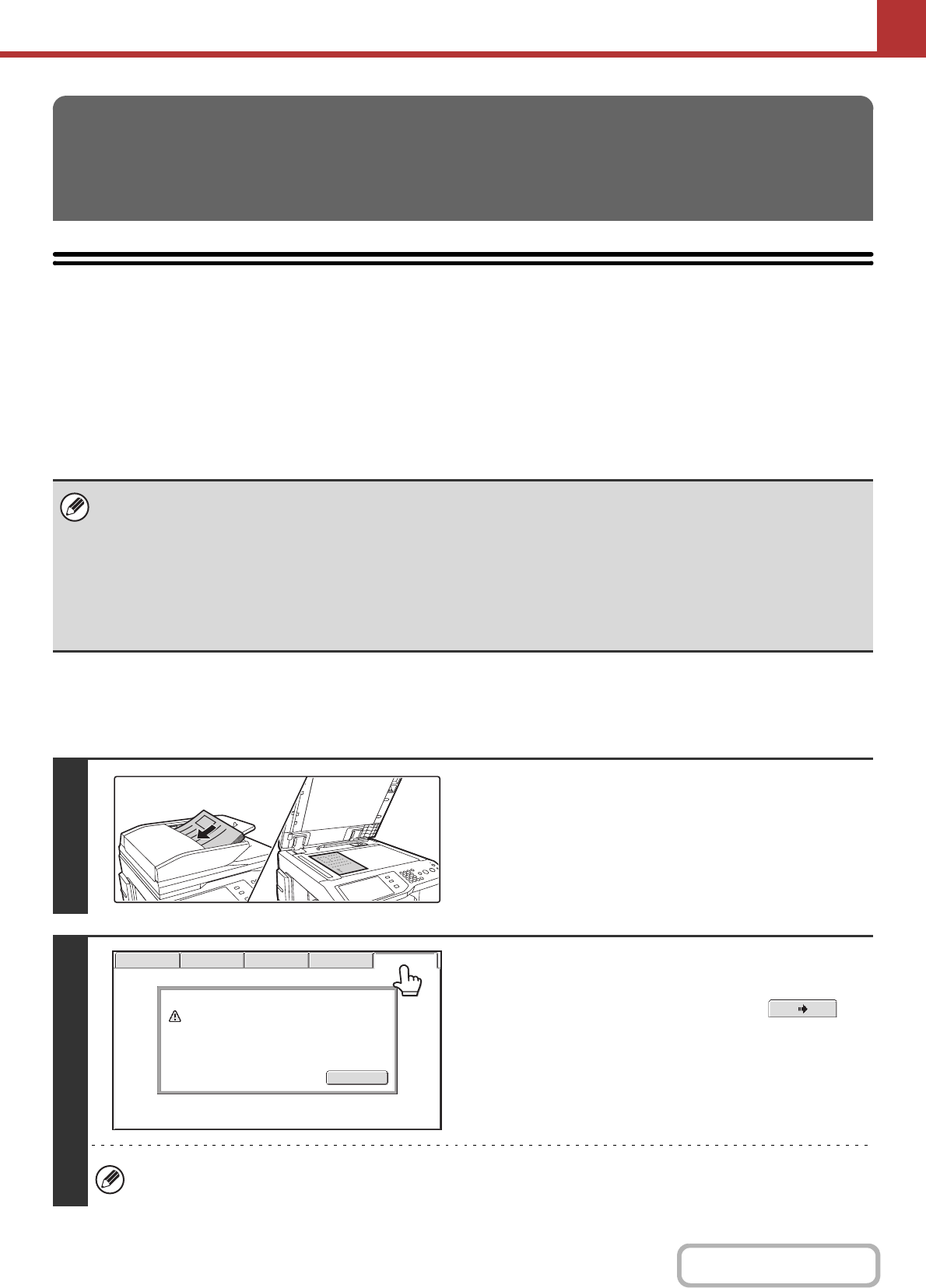
- SCANNING FROM A COMPUTER 586
- (PC Scan Mode) 586
- [At your computer] 587
- [At the machine] 590
- METADATA DELIVERY 591
- PREPARATIONS FOR METADATA 592
- TRANSMITTING METADATA 593
- METADATA FIELDS 595
- CHAPTER 6 596
- DOCUMENT FILING 596
- USES OF DOCUMENT FILING 598
- BEFORE USING DOCUMENT FILING 599
- Automatic deletion of files 601
- Copy mode 603
- Image Send mode 603
- Scan to HDD mode 604
- SAVING FILES WITH DOCUMENT 606
- FILE INFORMATION 610
- Touch the [File Name] key 611
- Touch the [Stored to:] key 611
- Original 614
- Exposure 614
- Color Mode 615
- USING STORED FILES 618
- FOLDER SELECTION SCREEN 620
- FILE SELECTION SCREEN 621
- SELECTING A FILE 623
- JOB SETTINGS SCREEN 624
- PRINTING A STORED FILE 625
- PRINT SETTINGS SCREEN 626
- MULTI-FILE PRINTING 627
- Batch printing 629
- SENDING A STORED FILE 631
- SEND SETTINGS SCREEN 632
- PROPERTIES OF STORED FILES 633
- MOVING A STORED FILE 635
- DELETING A STORED FILE 637
- SEARCHING FOR A STORED FILE 641
- Searching within a folder 644
- CHAPTER 7 647
- SYSTEM SETTINGS 647
- SYSTEM SETTINGS FOR FAX 648
- Common Operation Methods 650
- SYSTEM SETTINGS (GENERAL) 651
- Total Count 656
- Default Settings 657
- List Print (User) 658
- Paper Tray Settings 659
- Tray Settings 660
- Paper Type Registration 661
- Auto Tray Switching 661
- Address Control 662
- Settings 663
- Custom Index 664
- Storing a program 665
- Editing and deleting programs 665
- Fax Data Receive/Forward 666
- Printer Condition Settings 667
- PCL Settings 668
- PostScript Setting 669
- Document Filing Control 670
- USB-Device Check 671
- User Control 671
- (ADMINISTRATOR) 672
- Login by user number 674
- Other Settings 692
- User List 693
- Page Limit Group List 695
- Authority Group List 696
- Favorite Operation Group List 699
- Home Screen List 700
- User Count 701
- Resetting user counts 702
- Energy Save 703
- Operation Settings 704
- MFP Display Pattern Setting 705
- Customize Key Setting 705
- Home Screen Settings 705
- Preview Setting 706
- Remote Operation Settings 706
- Device Control 707
- Optimization of a Hard Disk 708
- Clear All Job Log Data 708
- Disabling of Devices 710
- Fusing Control Settings 710
- Copy Function Settings 711
- Color Adjustments 714
- Network Settings 715
- Printer Settings 716
- Interface Settings 717
- Auto Color Calibration 718
- Image Send Settings 719
- Sender Data Registration 722
- Own Name and Destination Set 722
- Scan Settings 723
- I-Fax Settings 725
- Document Filing Settings 729
- Document Output Options 731
- List Print (Administrator) 732
- Security Settings 733
- Enable/Disable Settings 734
- Change Administrator Password 737
- Product Key 737
- Data Backup 738
- Restore Factory Defaults 739
- Store Current Configuration 739
- Restore Configuration 739
- Sharp OSA Settings 740
- F-Code Memory Box 744
- A3 RX Reduce 753
- Fax Output Settings 753
- Allow/Reject Number Setting 753
- Fax Polling Security 754
- CHAPTER 8 755
- TROUBLESHOOTING 755
- REMOVING MISFEEDS 756
- PAPER MISFEED ILLUSTRATIONS 757
- REMOVING STAPLE JAMS 761
- SADDLE STITCH FINISHER 763
- Saddle stitch unit 765
- PROBLEMS RELATED TO RECEPTION 779
- PROBLEMS RELATED TO TELEPHONE 780
- KEYS / GROUP KEYS 781
- SCANNING / INTERNET FAX 782
- GENERAL PROBLEMS 790
- OTHER PROBLEMS 798
- SHARP ELECTRONICS CORPORATION 799
Powiązane produkty i podręczniki dla Drukarki Sharp MX-3100N
 (655 strony)
(88 strony)
(118 strony)
(121 strony)
(46 strony)
(47 strony)
(28 strony)
(88 strony)
(2 strony)
(849 strony)
(32 strony)
(84 strony)
(52 strony)
(2 strony)
(116 strony)
(144 strony)
(67 strony)
(655 strony)
(88 strony)
(118 strony)
(121 strony)
(46 strony)
(47 strony)
(28 strony)
(88 strony)
(2 strony)
(849 strony)
(32 strony)
(84 strony)
(52 strony)
(2 strony)
(116 strony)
(144 strony)
(67 strony)
© 2020, manymanuals.pl. Wszelkie prawa zastrzeżone. | 0.028 s |
 Manymanuals.com
 Manymanuals.de
 Manymanuals.fr
 Manymanuals.it
 Manymanuals.pl
 Manymanuals.cz
 Manymanuals.es
 Manymanuals-pt.com
Komentarze do niniejszej Instrukcji