Sharp UX- Printer, Dokumentacja
Przeglądaj online lub pobierz Dokumentacja dla Faksy Sharp UX- Printer,. Sharp UX- Printer, Specifications Instrukcja obsługi
- Strona / 140
- Spis treści
- ROZWIĄZYWANIE PROBLEMÓW
- BOOKMARKI

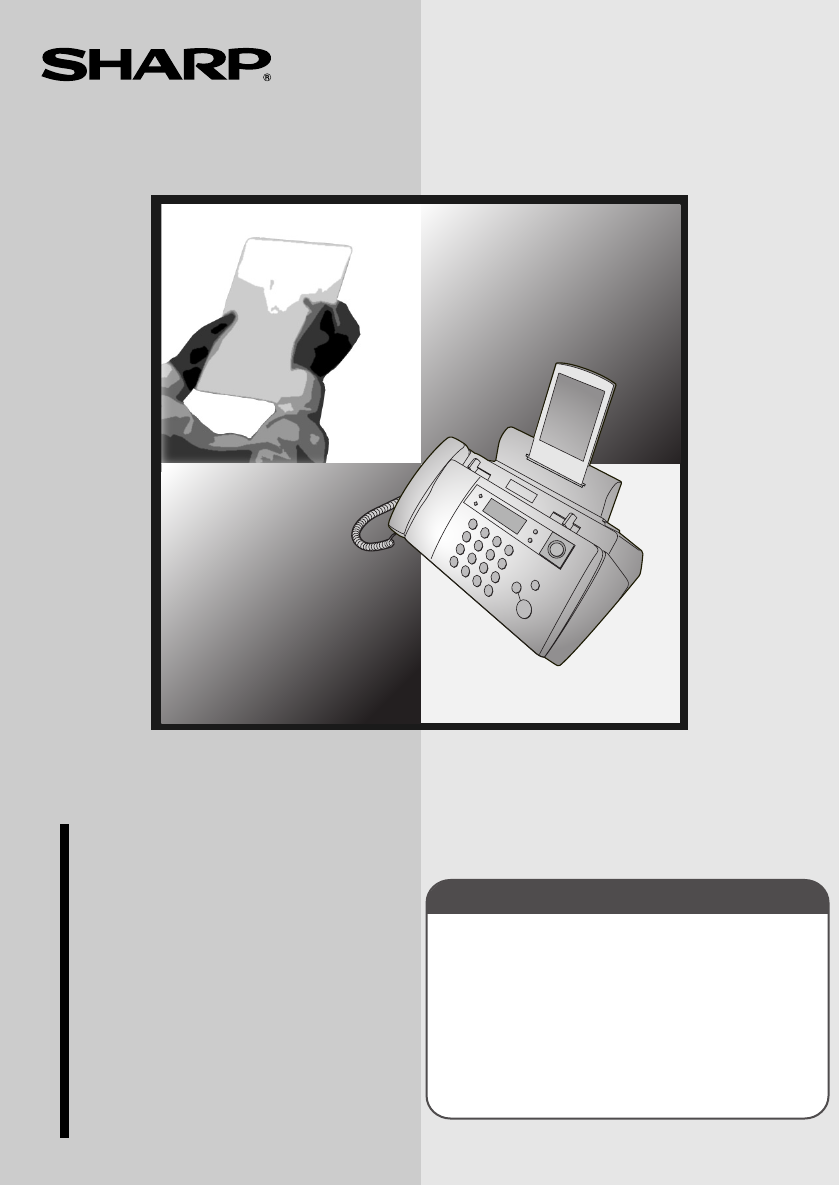
- FACSIMILE 1
- IMPORTANT 2
- Introduction 3
- Important safety information 5
- Table of Contents 7
- A Look at the Operation Panel 9
- Icons in the display 11
- Microphone location 11
- 1. Installation 12
- Attachments 13
- Connecting the handset 14
- Attaching the paper tray 15
- Loading Printing Paper 16
- Connecting the Power Cord 17
- Approx. 300 A4 pages 18
- : Approx. 200 A4 pages 18
- Approx. 600 A4 pages 18
- : Approx. 400 A4 pages 18
- 1. Installation 19
- Gold contact area 20
- Display when “NEW” 22
- After the alignment page is 22
- The display briefly shows 24
- Display: 24
- TEL.LINE 25
- DATE&TIME SET 28
- Setting the Date and Time 29
- Setting the Reception Mode 31
- Flash Select Setting for PBX 32
- Volume Adjustment 33
- Error beep off 35
- End beep off 35
- Key tone off 36
- 2. SMS Text Messaging 37
- Sending an SMS Message 40
- Receiving SMS Messages 43
- Viewing the Outbox 45
- Printing all messages 47
- Deleting all messages 47
- SMS Settings 48
- REC/MEMO 50
- 01-JAN 12:00 51
- Toll Saver Toll Saver 52
- PLAY/HOLD 53
- Erasing received messages 54
- Recording memos 54
- Setting ICM time 55
- FAX mode on A.M. failure 55
- OGM only mode 56
- Transfer Function 57
- Override Ringing 60
- Remote Operations 62
- Retrieving your messages 63
- Other remote operations 65
- Recording a memo 67
- 4. Sending Faxes 68
- Loading the Document 69
- Resolution settings 71
- Contrast settings 71
- RESOLUTION/ 72
- RECEPTION 72
- 4. Sending 73
- DELETEREPEAT 74
- 1=EDIT, 2=CLEAR 78
- <NEW NUMBER> 78
- 29-MAY 12:00 80
- READY TO SEND 80
- Error Correction Mode 83
- • Press the number keys 84
- Memory transmission 87
- If the memory becomes full 88
- Using TEL Mode 93
- Optional Reception Settings 95
- Reception Ratio 96
- 5. Receiving 97
- Copy Cut-off 99
- Making Copies 100
- 7. Special Functions 101
- How Caller ID operates 102
- Display messages 102
- Viewing the Caller ID list 103
- Priority Call 104
- Blocking voice calls 105
- ANTI JUNK # 106
- 1=SET, 2=CLEAR 106
- ENTRY MODE 106
- SPEAKERPHONE 107
- PBX operations 108
- 8. Printing Lists 109
- Telephone Number List 110
- Setup List 110
- Message List 110
- Caller-ID List 110
- Help List 110
- Transaction Report 111
- Printing Lists 112
- 9. Maintenance 113
- Maintenance 114
- Cleaning the housing 115
- Improving Print Quality 116
- Cleaning the cartridge holder 120
- 10. Troubleshooting 121
- Problems and Solutions 122
- General problems 124
- SMS messaging problems 125
- Messages and Signals 127
- Clearing Paper Jams 130
- Quick Reference Guide 132
- REMOTE OPERATION CARD 137
- REMOTE COMMANDS 138
- SHARP ELECTRONICS (UK) LTD 140
- SHARP CORPORATION 140
Podsumowanie treści
IMPORTANTPLEASE KEEP THE EXTERNAL & INTERNAL PACKAGING SAFE. PLEASE DO NOT THROW IT AWAY.IN THE UNLIKELY EVENT OF A HARDWARE FAILURE, OUR REPAIR C
8Arrow keysUse these keys to scroll through and select settings, and to search for auto-dial numbers (page 77).FUNCTION keyPress this key followed by
Making Copies98High-quality copy setting (fast/slow printing of copies)The high-quality copy setting controls the speed at which copies are printed. I
997. Special Functions7. Special FunctionsCaller ID (Requires Subscription to Service)If you subscribe to a caller identification service from your t
Caller ID (Requires Subscription to Service)100How Caller ID operatesWhen you receive a call, the name and phone number of the caller will appear in t
Caller ID (Requires Subscription to Service)1017. Special FunctionsViewing the Caller ID listIf you subscribe to a Caller ID service and have turned o
Caller ID (Requires Subscription to Service)102To delete calls from the Caller ID listIf you want to delete a single call from the caller list, press
Caller ID (Requires Subscription to Service)1037. Special FunctionsBlocking voice callsIf you have turned on Caller ID, you can use the Anti Junk Fax
Blocking Reception of Unwanted Faxes1041Press once and 3 times.2Press once and twice.3Press once.4Press to store an Anti Junk number, or
Polling (Requesting a Fax Transmission)1057. Special FunctionsPolling (Requesting a Fax Transmission)Polling allows you to call another fax machine an
PBX operations106PBX operationsIf your fax is connected to a PBX, you can use it to perform the following operations:Making enquiry calls: During a ca
1078. Printing Lists8. Printing ListsYou can print lists showing settings and information entered in the fax machine. The lists are described below.
9COPY/HELP keyWhen a document is in the feeder, press this key to make a copy of the document (page 97). At any other time, press this key to print ou
Printing Lists108Telephone Number ListThis list shows the fax and phone numbers that have been stored for automatic dialling.Setup ListThis list shows
Printing Lists1098. Printing ListsTransaction ReportThis report is printed out automatically after an operation is completed to allow you to check the
Printing Lists110Transaction Report print conditionYou can change the condition under which a Transaction Report is printed out. Follow the steps belo
1119. Maintenance9. MaintenanceCleaning the MachineCleaning the scanning glass and rollersClean the scanning glass and rollers frequently to ensure t
Maintenance1124Wipe the scanning glass (exposed by removing the white roller) and rollers with a clean cloth.• Make sure that all dirt and stains (suc
Maintenance1139. Maintenance7Close the operation panel, pressing down firmly to make sure it clicks into place.Cleaning the housingWipe the external p
Maintenance114Improving Print QualityAligning the print cartridgeIf print quality is not satisfactory, first try aligning the print cartridge.Note: Ma
Maintenance1159. Maintenance6Press the number keys to enter the number of the straightest line.Example: • If you make a mistake, press and then rep
Maintenance1165Compare the diagonal line above the printed bars to the diagonal line below the printed bars.• Look for a break in the diagonal line ab
Maintenance1179. MaintenanceWiping the print nozzles and contactsIf you have cleaned the print nozzles as explained in the previous section at least t
101. InstallationUnpacking ChecklistIf any are missing, contact your dealer or retailer.Before setting up, make sure you have all of the following it
Maintenance118Cleaning the cartridge holderA dirty print cartridge holder may cause smudges on your printed pages. To clean the print cartridge holder
11910. Trouble-shooting10. TroubleshootingProblems and SolutionsLine errorProblem SolutionLINE ERROR appears in the display.A line error occurs when
Problems and Solutions120Dialling and transmission problemsProblem SolutionNo dial tone when you pick up the handset or press the DIGITAL SPEAKERPHONE
Problems and Solutions12110. Trouble-shootingReception and copying problemsProblem SolutionThe power is on, but no reception takes place.• Make sure t
Problems and Solutions122General problemsProblem SolutionNothing appears in the display.• Make sure the power cord is properly plugged into a power ou
Problems and Solutions12310. Trouble-shootingSMS messaging problems Problem SolutionYou cannot send SMS messages.• Have you registered for SMS service
Problems and Solutions124You receive a voice message from your SMS center.• This may happen if you attempt to send an SMS message without subcribing t
Messages and Signals12510. Trouble-shootingMessages and SignalsDisplay messagesNote: If you have turned on the Caller ID function, see page 100 for di
Messages and Signals126FAX RX IN MEMORY A fax has been received in memory because the print cartridge needs replacement, you have run out of printing
Messages and Signals12710. Trouble-shootingPRINTER ERROR/CHECK PAPERA paper jam may have occurred. Follow the procedure on page 129 to clear the jam.R
Attachments111. InstallationAttachmentsPoints to keep in mind when setting upDo not place the machine in direct sunlight.Do not place the machine near
Clearing Paper Jams128Clearing Paper JamsClearing a jammed documentIf the original document doesn’t feed properly during transmission or copying, or D
Clearing Paper Jams12910. Trouble-shootingClearing jammed printing paperGently pull the jammed paper out of the machine, taking care not to tear it. A
130Quick Reference GuideSending FaxesPlace your document (up to 10 pages) face down in the document feeder.Normal Dialling 1. Lift the handset or pres
131AA.M. reception mode, 29, 49Anti Junk Fax, 104Audible signals, 127Auto-dial numbersStoring, 73Using, 77BBatch page numbering, 83Broadcasting, 84CCa
Index132Number of rings in A.M. mode, 50Number of rings in FAX reception mode, 89OOGM only mode, 54Outgoing message, 48Override Ringing, 58PPage numbe
all.book Page 133 Tuesday, March 29, 2005 9:08 AM
all.book Page 134 Tuesday, March 29, 2005 9:08 AM
1. Call your fax from a touch-tone telephone, and press # when the outgoing message begins. 2. Enter your remote code: . 3. Pres
REMOTE COMMANDS• FAX RECEPTION MODES A.M. mode ... 81#FAX mode... 82#TEL mode... 83#T
A. Information on Disposal for Users (private households)1. In the European UnionAttention: If you want to dispose of this equipment, please do not us
Attachments12Connecting the handsetConnect the handset as shown and place it on the handset rest.♦ The ends of the handset cord are identical, so they
PRINTED IN THAILAND(TINSE4448XHTA)SHARP ELECTRONICS (UK) LTD.Sharp House, Thorp Road, Newton Heath, Manchester, M40 5BESHARP CORPORATIONall.book Page
Attachments131. InstallationAttaching the paper trayAttach the paper tray.Attach the paper tray extension.Click!Note: The paper tray extension has a t
Loading Printing Paper14Loading Printing PaperYou can load up to 50 sheets of A4-size paper (60 - 80 g/m2) in the paper tray (at room temperature; ma
Connecting the Power Cord151. InstallationConnecting the Power CordPlug the power cord into a 230 V, 50 Hz, earthed AC (3-prong) outlet.Caution!♦ Make
Installing the Print Cartridge16 If PRINTER ERROR or PRINTER ERROR/CHECK PAPER appears...In the event that the display shows either of the above messa
Installing the Print Cartridge171. Installation1Press .• Make sure the handset is on its cradle. If the handset is not on the cradle, pressing will
MAINS PLUG WIRING INSTRUCTIONS This equipment is fitted with a moulded type mains plug which incorporates a detachable fuse cover, under no circumstan
Installing the Print Cartridge185Make sure the cartridge holder has moved slightly away from the right side of the compartment, and then pull the gree
Installing the Print Cartridge191. Installation8Close the print compartment cover.9Close the operation panel, pressing down firmly to make sure it cli
Installing the Print Cartridge2012Press .If you selected “OLD” in the previous step, this completes the installation procedure. (Note: If you find th
Installing the Print Cartridge211. Installation15Press the number keys to enter the number of the straightest line.Example: • If you make a mistake,
Installing the Print Cartridge224Press to turn on Quality mode, or to turn it off.5Press to return to the date and time display.The display brief
Connecting the Telephone Line Cord231. InstallationConnecting the Telephone Line CordInsert one end of the line cord into the socket on the back of th
Connecting the Telephone Line Cord24Extension phone (optional)If desired, you can connect an extension phone to the TEL. SET socket on the fax machine
Entering Your Name and Fax Number251. Installation]Entering Your Name and Fax NumberOnce you enter this information, it will automatically appear at t
Entering Your Name and Fax Number264Enter your fax number by pressing the number keys (max. 20 digits). • To insert a space between digits, press . T
Setting the Date and Time271. InstallationSetting the Date and Time1Press once and 3 times.2Press once and once.3Press once.4Enter a two-digi
Setting the Date and Time285Enter a two-digit number for the month (“01” for January, “02” for February, “12” for December, etc.).Example: January 6
Setting the Reception Mode291. InstallationSetting the Reception ModeThe machine has four modes for receiving incoming faxes.Note: SMS messages can be
Flash Select Setting for PBX30Flash Select Setting for PBXNote: This setting is normally only used in Germany. In other countries, you can try changin
Volume Adjustment311. Installation Volume AdjustmentYou can adjust the volume of the speaker and ringer using the up and down arrow keys.1Press .2Pres
Volume Adjustment321Press or to select the desired volume level. (Make sure has not been pressed and a document is not loaded in the feeder.)• T
Volume Adjustment331. InstallationError beep offThe machine normally sounds three beeps to alert you when an error occurs during transmission, recepti
Volume Adjustment343Press once.4Press to turn on the end beep or to turn off the end beep.5Press to return to the date and time display.The disp
352. SMS Text Messages2. SMS Text MessagingYour fax machine can be used to send and receive SMS (Short Message Service) text messages.Requirements:To
Sending an SMS Message36Sending an SMS MessageThis section explains how to write and send an SMS message. A maximum of 160 characters can be entered i
Sending an SMS Message372. SMS Text Messages6Enter the message by pressing number keys for each letter as shown in the following chart. Example: I WIL
2Automatic dialling 30 numbersTelephone function Yes (cannot be used if power fails)Applicable telephone line Public switched telephone network (TBR21
Sending an SMS Message387When you are ready to send the message, press . The fax machine will automatically call your SMS center and send the message
Sending an SMS Message392. SMS Text Messages5Press .6Enter the message by pressing number keys for each letter as shown in the following chart. Examp
Sending an SMS Message40♦ When you have finished entering your message, you can check it by pressing to print it out.7When you are ready to send the
Receiving SMS Messages412. SMS Text MessagesReceiving SMS MessagesEach time you receive an SMS message, your SMS center will call the fax machine and
Receiving SMS Messages422Press or until the message you wish to read appears in the display.• You can press and then to delete a message when
Viewing the Outbox432. SMS Text MessagesWhen you press , the following message briefly appears:While the inbox is full, you will not be able to recei
Viewing the Outbox443Press or to scroll through your sent messages.• If an exclamation point (!) appears with a message, the message was not sent
Printing or Deleting all Messages452. SMS Text MessagesPrinting or Deleting all MessagesPrinting all messagesFollow these steps to print all messages
SMS Settings461Press once and once.2Press once and once.3Press .4Press to select ON.(To turn off the function, press .)5Press to return t
SMS Settings472. SMS Text MessagesSMS center numbersThe numbers for the British Telecom SMS center have been pre-stored in your fax machine. Normally
3As a part of our policy of continuous improvement, SHARP reserves the right to make design and specification changes for product improvement without
481Press once and once.2Press once.3Lift the handset.REC/MEMO3. Using the Answering MachineThe built-in answering machine allows you to receive
Operating the Answering Machine493. Answering MachineTo listen to the outgoing messageTo listen to the outgoing message, follow Steps 1 and 2 of the a
Operating the Answering Machine50Note: In A.M. mode, the machine will automatically switch to fax reception if it detects six seconds of silence after
Operating the Answering Machine513. Answering MachineListening to received messagesIf you have received messages, the display will show the number of
Operating the Answering Machine52Erasing received messagesIt is important to erase received messages after you listen to them to ensure that the memor
Optional Answering Machine Settings533. Answering Machine1Press once and once.2Press once and once.3Press .4Press a number from 1 to 4 to sele
Optional Answering Machine Settings541Press once and once.2Press once and twice.3Press .4Press to select YES (switch to FAX mode), or to s
Transfer Function553. Answering Machine3Press .4Press to turn on OGM only mode, or to turn it off.5Press to return to the date and time display.
Transfer Function564Press the number keys to enter the transfer number.• To insert a pause between any two digits of the number, press .5Press .6Pres
Transfer Function573. Answering Machine5When finished, replace the handset or press .Checking or erasing the transfer messageTo check or erase the tr
4Never touch bare telephone wires or terminals unless the telephone line has been disconnected at the network interface.Use caution when installing or
Override Ringing586Each time the machine receives an incoming message, it will call your programmed transfer number. When you answer, you will hear yo
Override Ringing593. Answering Machine2Press once and 3 times.3Press .4Press the number keys to enter a 3-digit override code.5Press to store th
Remote Operations601Press once and once.2Press once and twice.3Press .4Press the number keys to enter a 3-digit remote code number.5Press to
Remote Operations613. Answering Machine1Press once and once.2Press once.3Press once.4Press to turn on the Toll Saver function, or to turn it
Remote Operations623While the messages are playing, you can do any of the following:• Repeat: To listen to a message a second time, press and on t
Remote Operations633. Answering MachineNote: You can also call the machine and perform remote operations when the reception mode is set to FAX. In thi
Remote Operations64Recording a new outgoing message1Press and on the telephone.2When you hear a short beep, speak into the telephone to record the
Remote Operations653. Answering MachineRecording a memoYou can record a memo for yourself or other users of the machine. The memo will be played back
664. Sending FaxesTransmittable DocumentsSize and weight 52 g/m²Minimum document size:Minimum size Minimum weight10 sheets at once:Size: A4 (210 x
Loading the Document674. Sending FaxesOther restrictions♦ The scanner cannot recognise yellow, greenish yellow, or light blue ink.♦ Ink, glue, and cor
5Table of ContentsA Look at the Operation Panel 71. Installation 10Unpacking Checklist . . . . . . . . . . . . . . . . . . . . . . . . . . . . . . .
Loading the Document683Adjust the resolution and/or contrast settings as explained on page 69, then dial the receiving machine as explained on page 72
Adjusting the Resolution and Contrast694. Sending FaxesAdjusting the Resolution and ContrastIf desired, you can adjust the resolution and contrast bef
Adjusting the Resolution and Contrast70Note: In order to transmit in SUPER FINE resolution, the receiving fax machine must also have that resolution.
Adjusting the Resolution and Contrast714. Sending FaxesChanging the default resolutionIf desired, you can change the default resolution for faxing doc
Sending a Fax by Normal Dialling721Load the document(s).• If desired, press to set the resolution and/or contrast.2Pick up the handset or press . L
Sending a Fax by Automatic Dialling734. Sending Faxes• If the other person answers, ask them to press their Start key (if you pressed , speak facing
Sending a Fax by Automatic Dialling742Press once.3Enter the fax or phone number by pressing the number keys. Up to 32 digits can be entered (only 20
Sending a Fax by Automatic Dialling754. Sending Faxes5Enter a name by pressing number keys for each letter as shown in the chart below. Up to 15 chara
Sending a Fax by Automatic Dialling76Editing and clearing auto-dial numbersIf you need to make changes to a previously stored auto-dial number, or cle
Sending a Fax by Automatic Dialling774. Sending Faxes7Make the desired changes to the name. • Press or to move the cursor to the letter or letters
Table of Contents6Sending a Fax by Normal Dialling. . . . . . . . . . . . . . . . . . . . . . . . . . . 72Sending a Fax by Automatic Dialling . . . .
Sending a Fax by Automatic Dialling782Press (or ) until the name of the other party appears in the display (if no name was stored, the number will
Sending a Fax by Automatic Dialling794. Sending Faxes2Enter the number of the receiving machine by pressing the number keys.• If a pause is required b
Sending a Fax by Automatic Dialling801If you are sending a fax, load the document(s).• If desired, press to set the resolution and/or contrast.2Pres
Sending a Fax by Automatic Dialling814. Sending Faxes♦ You can press to clear the message and stop automatic redialling.♦ Under certain conditions (
Using the Speakerphone to Make a Phone Call82Using the Speakerphone to Make a Phone CallYou can use the speakerphone to make a phone call.1Press .2Dia
Batch Page Numbering834. Sending FaxesBatch Page NumberingYou can change the page numbering of the transmitted document from simple numbering ("P
Sending a Fax From Memory84Sending a Fax From MemoryYou can scan a document into the fax’s memory and send the document from memory. This increases tr
Sending a Fax From Memory854. Sending Faxes5Repeat Steps 3 and 4 for each of the other destinations to which you wish to send the fax (maximum of 20).
Sending a Fax From Memory86If the memory becomes full...If the memory becomes full while the document is being scanned, FAX MEMORY FULL will appear in
875. Receiving Faxes5. Receiving FaxesUsing TEL/FAX ModeWhen the reception mode is set to TEL/FAX, your fax machine automatically answers all calls o
7ZARESOLUTION/ RECEPTIONINKREC/MEMOPLAY/HOLDR4 5 6112 139 14 15 16 17 187 8DELETEREPEATSKIPDIGITALSPEAKERPHONE10 112 3REC/MEMO keyPress this key to
Using A.M. Mode88Pseudo Ring Duration for Tel/Fax ModeIf desired, you can change the duration of pseudo ringing in Tel/Fax mode.1Press once and 3
Using FAX Mode895. Receiving FaxesRESOLUTION/ RECEPTIONWhen the reception mode is set to FAX, the fax machine will automatically answer all calls on
Using TEL Mode90RESOLUTION/ RECEPTION2Press once and once.3Press once.4Enter the desired number of rings (any number from 1 to 4).Example: 3 ri
Using TEL Mode915. Receiving Faxes1When the fax machine rings, pick up the handset.2If you hear a fax tone, wait until the display shows FAX RECEIVING
Using TEL Mode921Answer the extension phone when it rings.2If you hear a soft fax tone, wait until your fax responds (the extension phone will go dead
Optional Reception Settings935. Receiving Faxes1Press once and 3 times.2Press once and 6 times.3Press once.4Press to turn on the function,
Optional Reception Settings94Reception RatioThe machine has been set at the factory to automatically reduce the size of received documents to fit the
Substitute Reception to Memory955. Receiving FaxesSubstitute Reception to MemoryIn situations where printing is not possible, such as when your fax ru
966. Making CopiesYour fax machine can also be used to make copies. Single and multiple copies (up to 99 per original) can be made, enabling your fax
Making Copies976. MakingCopies1Press once and twice.2Press once and once.3Press once.If MEMORY IS FULL appears...If you place a large number
Więcej dokumentów dla Faksy Sharp UX- Printer,


Powiązane produkty i podręczniki dla Faksy Sharp UX- Printer,
 (36 strony)
(2 strony)
(136 strony)
(291 strony)
(36 strony)
(2 strony)
(136 strony)
(291 strony)
 (162 strony)
(36 strony)
(69 strony)
(162 strony)
(36 strony)
(69 strony)
 (162 strony)
(152 strony)
(76 strony)
(6 strony)
(162 strony)
(152 strony)
(76 strony)
(6 strony)

 (100 strony)
(88 strony)
(108 strony)
(104 strony)
(80 strony)
(100 strony)
(88 strony)
(108 strony)
(104 strony)
(80 strony)
 (130 strony)
(120 strony)
(130 strony)
(120 strony)
© 2020, manymanuals.pl. Wszelkie prawa zastrzeżone. | 0.025 s |
 Manymanuals.com
 Manymanuals.de
 Manymanuals.fr
 Manymanuals.it
 Manymanuals.pl
 Manymanuals.cz
 Manymanuals.es
 Manymanuals-pt.com
Komentarze do niniejszej Instrukcji