Sharp FO-781 Instrukcja Obsługi
Przeglądaj online lub pobierz Instrukcja Obsługi dla Kopiarki Sharp FO-781. Sharp FO-781 Instruction manual Instrukcja obsługi
- Strona / 208
- Spis treści
- BOOKMARKI

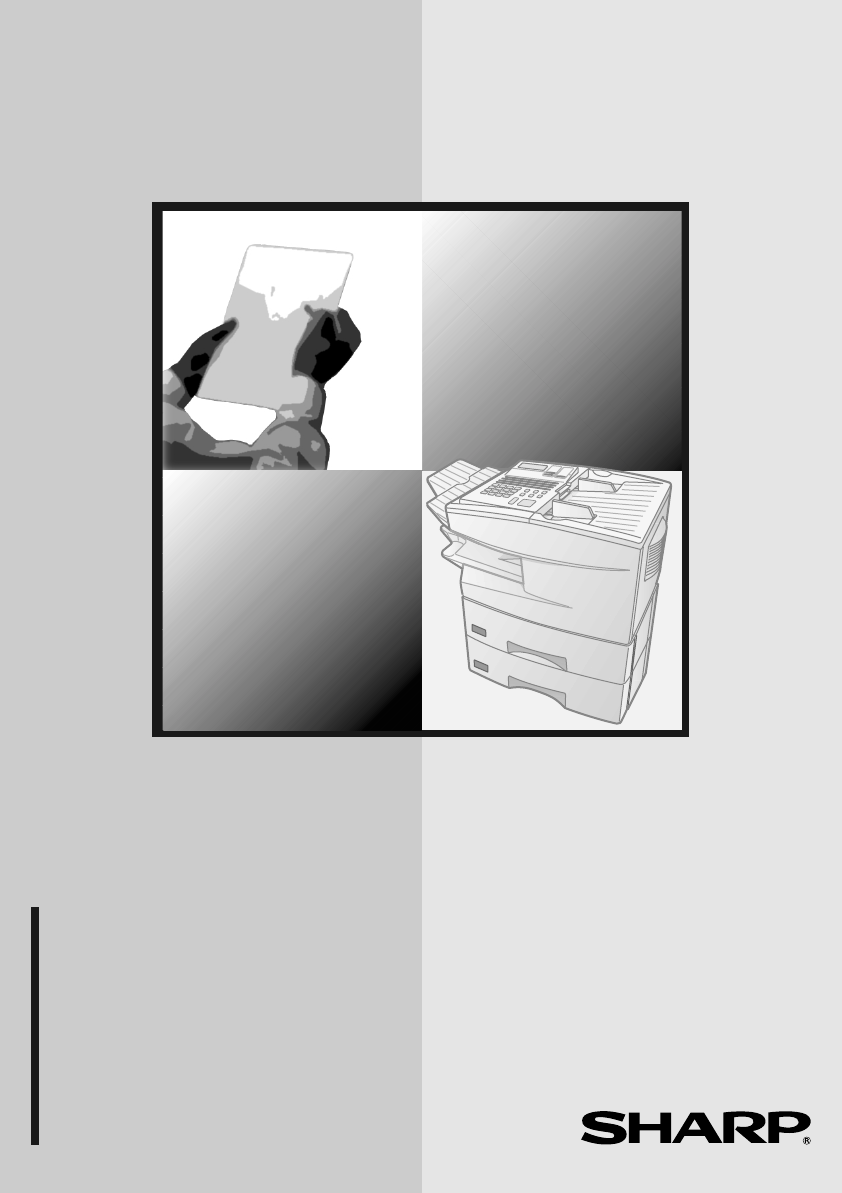
- FACSIMILE 1
- SPEED DIAL 3
- GUIA DE CONSULTA RAPIDA 4
- Introduction 5
- Important safety information 7
- Important: 8
- Table of Contents 10
- Unpacking Checklist 11
- 1. Installation 11
- A Look at the Operation Panel 12
- Rapid Key 14
- 28 29 30 31 16
- 34 36 37 38 39 4035 16
- Connections 18
- Pull out the tray 20
- Make sure the left edge of 20
- Loading Printing Paper 28
- ENTER SENDER’S NAME 32
- LINE 1 LINE 2 32
- Setting the Date and Time 34
- Volume Adjustment 36
- Transmittable Documents 38
- 2. Sending 39
- Documents 39
- Loading the Document 40
- Programming Auto-Dial Numbers 45
- Example: Rapid Key 02 46
- Speed Dial 1 46
- Step 4 or 48
- DOCUMENT 60
- 4:MESSAGE CLEAR 68
- ENTER MESSAGE # 68
- Cover Sheet 69
- COVER SHEET 70
- Batch Page Numbering 71
- 3. Receiving 73
- Using MANUAL Reception Mode 74
- Using AUTO Reception Mode 74
- 4. Making Copies 76
- 4. Making 77
- Making Copies 78
- Broadcasting 79
- 2:GROUP ENTRY MODE 82
- Confidential Operations 84
- 2:CONF. DATA PRINT 88
- ENTER BOX # (00-99) 88
- Relay Request 90
- Keys 01 and 33 92
- Example: Rapid 92
- Step 2 or 94
- 3:RELAY GROUP CLEAR 94
- ENTER # (01-10) 94
- 4:RELAY PASSCODE 96
- Subaddressing Transmission 100
- 5. Special 101
- Functions 101
- CONTRAST 102
- 9:MEMORY POLL MODE 108
- ENTER #(1-2,*,#) 108
- FUNCTION 110
- (Example) 112
- Step 3 or 112
- Power Save Mode 113
- Example: 8:00 A.M 116
- WEEKEND SETTING 116
- 1=YES, 2=NO 116
- Timer Operations 119
- Example: 9:25 120
- A.M. P.M 120
- Example: Monday 120
- RESOLUTION 126
- 2:TIMER COMM. CLEAR 130
- ENTER #(01-48) 130
- Batch Transmission 131
- Entering and Using Programs 134
- Print Hold 153
- Mode is on 154
- 1:HOLD DATA PRINT 154
- ENTER PASSCODE # 154
- Department Control 155
- 08:STORE JUNK FAX # 158
- 1=SET, 2=CLEAR 158
- SET CLEAR 158
- Telephone Billing 160
- Distinctive Ring 162
- 6. Optional Settings 164
- 6. Option 165
- Settings 165
- Optional Settings 166
- 7. Printing 175
- Explanation of headings 176
- Timer List (List 02) 178
- Printing Lists and Reports 180
- 8. Maintenance 185
- The Housing 186
- Problems and Solutions 188
- 9. Trouble 189
- Messages and Signals 192
- Audible signals 194
- Clearing Paper Jams 195
- Replace the paper cassette 198
- FCC Regulatory Information 199
- S H A R P 200
- SHARP CORPORATION 208
Podsumowanie treści
MODELFO-6700OPERATION MANUALFACSIMILEFO-6700 FACSIMILE 1. Installation 2. Sending Documents 3. Receiving Documents 4. Making Copies
Table of Contents84. Making Copies. . . . . . . . . . . . . . . . . . . . . . . . . . . . . . . . . .745. Special Functions . . . . . . . . . . . .
Subaddressing Transmission982Press the 2 key.The display will show:TX TABLE #=01ENTER TABLE NAME2: TX TABLE SETENTER #(01-20)23Enter a 2-digit number
Subaddressing Transmission995. SpecialFunctions7Press the START key.The display will show:8If this is a relay request operation and the relay machine
Subaddressing Transmission100Sending a fax by Subaddressing transmission1Load the document (s).•SEND READY will appear in the display.•Set the resolut
Subaddressing Transmission1015. SpecialFunctions5Press the START key.The display will show:6Dial the receiving fax machine and transmit the document u
Subaddressing Transmission1023Enter the 2-digit number of the transmission table you wish to clear.The display will show:(Example)01TX TABLE #=01PRESS
Polling1035. SpecialFunctionsPollingPolling allows you to call another fax machine and have it send a document to your machine without operator assist
Polling104•Enter one or more full fax numbers with the numeric keys, pressing the START key after each full number.3Press the START key. Reception wil
Polling1055. SpecialFunctions4Press 1 to select SET.•If another document has already been stored, press 1 to select APPEND, and go to Step 6.3Press th
Polling106Clearing a documentTo clear a memory poll document (or documents) from memory, follow the steps below:1Press these keys:The display will sho
Polling1075. SpecialFunctionsSystem and ID numbers are 4-digit numbers which provide you with an alternate means of giving and receiving polling permi
91. Installation1. InstallationUnpacking ChecklistBefore setting up, make sure you have all of the following items. If any are missing, contact your
Polling108Programming and clearing a System numberOne 4-digit System number can be programmed in your fax machine for giving and receiving polling per
Polling1095. SpecialFunctions3Enter the number (4 digits) with the numeric keys.4Press the START key.5Press the STOP key repeatedly to return to the d
Polling1103Storing: Enter a number from 1 to 5. This number identifies the ID number you will enter in the next step.Clearing: Enter the number which
Power Save Mode1115. SpecialFunctionsPower Save ModePower Save Mode allows you to conserve power by turning off the laser printer heater in the fax ma
Power Save Mode1122Enter 34 by pressing the numeric keys.The display will show:3Press 1 to select REAL TIME, or 2 to select TIMER.34:POWER SAVE TYPE1=
Power Save Mode1135. SpecialFunctionsTurning on Power Save Mode when TIMER is selectedWhen TIMER is selected, Power Save Mode turns on and off automat
Power Save Mode1144Enter the time you want Power Save Mode to turn off every day (END TIME). Enter two digits for the hour (01 to 12) and two digits f
Power Save Mode1155. SpecialFunctions7Enter a 1-digit number for the day each week you want Power Save Mode to turn on, and a 1-digit number for the d
Power Save Mode11611Enter the ending day of the period you want Power Save Mode to be on. Enter a 2-digit number for the month (01 to 12), and a 2-dig
Timer Operations1175. SpecialFunctionsTimer OperationsThe Timer function allows you to set up an operation to be performed automatically at a specifie
A Look at the Operation Panel10LINE 1 IN USECHANGEOVERPOWER SAVE RESOLUTIONSTANDARDFINESUPER FINEHALF TONESTATUS14 5 8 9 106 72 3LINE 2 IN USEDisplayT
Timer Operations1184Press the START key.5Enter a two-digit number for the hour (“01” to “12”) and a two-digit number for the minute (“00” to “59”).6Pr
Timer Operations1195. SpecialFunctions11Adjust the resolution and or contrast if desired, and then press the START key.10Press the START key.Transmiss
Timer Operations120Confidential transmission(Continued from Initial procedure.)9Enter the mailbox number (2 digits). (Go directly to Step 10 if the re
Timer Operations1215. SpecialFunctions11Dial the receiving machine using one of the following methods:•Press a Rapid Key.•Press the SPEED DIAL key and
Timer Operations122Polling(Continued from Initial procedure.)9Dial the machine to be polled using one of the following methods:•Press a Rapid Key.•Pre
Timer Operations1235. SpecialFunctionsSerial Polling(Continued from Initial procedure.)9Dial the machines to be polled using one or more of the follow
Timer Operations124Broadcasting(Continued from Initial procedure.)9Dial the receiving machines using one or more of the following methods:•Press one o
Timer Operations1255. SpecialFunctions12Load the document and then press the START key.•The document will be scanned into memory.Relay Request(Continu
Timer Operations12612Load the document and then press the START key.•The document will be scanned into memory.STARTSubaddressing transmission(Continue
Timer Operations1275. SpecialFunctions12Press the START key.13Adjust the resolution and or contrast if desired, and then press the START key.14Load th
A Look at the Operation Panel111. InstallationPaper indicatorThis blinks when one of the paper sources (tray or cassette) is out of paper, and lights
Timer Operations1283Press the START key.4Press the STOP key repeatedly until you return to the date and time display.STARTSTOPCanceling a timer operat
Batch Transmission1295. SpecialFunctionsBatch TransmissionBatch transmission allows you to store a number of documents in memory for automatic transmi
Batch Transmission130♦If no jobs have been stored under a Batch Key when the time for transmission arrives, transmission will not take place.1Load the
Batch Transmission1315. SpecialFunctions3Press the START key.2Enter the 3-digit message number assigned to the document.Canceling a job stored for bat
Entering and Using Programs132Entering and Using ProgramsIf you frequently perform the same operation involving the same party, you can program all th
Entering and Using Programs1335. SpecialFunctions4Enter a name for the program by pressing the letter entry keys. (If you don’t want to enter a name,
Entering and Using Programs13411Press the START key and go to the specific procedure for your operation (see the following pages).9Press the START key
Entering and Using Programs1355. SpecialFunctions14Adjust the resolution and or contrast if desired, and then press the START key.13Press the START ke
Entering and Using Programs136Confidential transmission(Continued from Initial procedure.)12Enter the mailbox number (2 digits). (Go directly to Step
Entering and Using Programs1375. SpecialFunctions14Dial the receiving machine using one of the following methods:•Press a Rapid Key.•Press the SPEED D
A Look at the Operation Panel12CLEARSPSHIFTSPACEAIQYBJRZCKSDLTEMUFNVGOWHPX010917250210182603111904122005132106142207152308162427 28 29 30 31 32CLEARSP
Entering and Using Programs138Polling(Continued from Initial procedure.)12Dial the machine to be polled using one of the following methods:•Press a Ra
Entering and Using Programs1395. SpecialFunctionsSerial Polling(Continued from Initial procedure.)12Dial the machines to be polled using one or more o
Entering and Using Programs140Broadcasting(Continued from Initial procedure.)12Dial the receiving machines using one or more of the following methods:
Entering and Using Programs1415. SpecialFunctions15Press the START keyRelay Request(Continued from Initial procedure.)12Enter the 2-digit relay group
Entering and Using Programs14215If you want the document to be sent through memory, press the START key.If you want the document to be sent directly f
Entering and Using Programs1435. SpecialFunctions14Dial the receiving machine using one of the following methods:•Press a Rapid Key.•Press the SPEED D
Entering and Using Programs144Batch transmission(Continued from Initial procedure.)12Dial the receiving machine using one of the following methods:•Pr
Entering and Using Programs1455. SpecialFunctions14Adjust the resolution and or contrast if desired, and then press the START key.15Press the START ke
Entering and Using Programs146Clearing a Program KeyTo clear a Program Key, follow these steps:1Press these keys:The display will show:2Press 2 to sel
Entering and Using Programs1475. SpecialFunctions4Press the START key.5Press the STOP key repeatedly until you return to the date and time display.Usi
A Look at the Operation Panel131. InstallationLIFE keyPress this key, followed by 1, to check the total number of pages printed by the fax machine.MEM
Entering and Using Programs148Canceling a programmed timer operationIf a Program Key has been pressed for a timer operation and you need to cancel the
Duplex Scanning for Two-sided Documents1495. SpecialFunctionsDuplex Scanning for Two-sided DocumentsTo transmit or copy documents which have printing
Duplex Scanning for Two-sided Documents1503Perform all steps of the desired copy or memory transmission.4When all pages of the document have been scan
Print Hold1515. SpecialFunctionsPrint HoldIf desired, you can have the fax hold all received documents in memory instead of immediately printing them
Print Hold152Turning on Print HoldTo turn on the Print Hold function, set Option Setting 30 to YES. This procedure is explained in Chapter 6, Optional
Department Control1535. SpecialFunctionsDepartment ControlDepartment Control is used to limit use of the fax machine to authorized users. When it is a
Department Control1543Entering: Enter a 2-digit number from “01” to “30” with the numeric keys. This number identifies the Department Code that you wi
Department Control1555. SpecialFunctions8Return to Step 3 to enter (or clear) another Department Code, or press the STOP key one or more times until y
Blocking Reception of Unwanted Faxes156Blocking Reception of Unwanted FaxesThe Anti Junk Fax function allows you to block reception of faxes from part
Blocking Reception of Unwanted Faxes1575. SpecialFunctions3Entering: Enter a 2-digit number from “01” to “50” with the numeric keys. This number ident
A Look at the Operation Panel141234567890ABCGHIDEFFUNCTIONCOPYDOCUMENT DUPLEX SCANBROADCASTSTOP STARTREPORTSPEED DIALREDIALSPEAKERJKL MNOPRSTUVOPERWXY
Telephone Billing158Telephone BillingIf you are on a PBX, you can have the fax machine send a code to the PBX that identifies the sender for billing p
Telephone Billing1595. SpecialFunctions1Load the document (s).•If you are using Normal Dialing, press the SPEAKER key or pick up an extension phone co
Distinctive Ring160Distinctive RingImportant:♦To use distinctive ring, you must subscribe to a distinctive ring ser-vice from your local phone company
Distinctive Ring1615. SpecialFunctions3Press a number from 1 to 3 to select the ring pattern below that matches your second number’s ring pattern. Or,
1626. Optional SettingsThe option settings let you customize the fax machine to better suit your needs. An initial setting has been made for each opt
Optional Settings1636. OptionSettings4After entering a selection, the subsequent option setting will appear in the display. To return to the date and
Optional Settings164Setting 04: AUTO LISTINGPress 1 (YES) to have the fax machine automatically print an Activity Report once every 50 send/receive op
Optional Settings1656. OptionSettingsSetting 08: SECURITY SELECTIONPress 1 (ON) to turn polling security on, or 2 (OFF) to turn it off.♦Initial settin
Optional Settings166Setting 13: COPY CUT-OFFThis setting determines how the fax machine will copy documents that are longer than the printing paper. P
Optional Settings1676. OptionSettingsOption Setting 33, Separate Mode, is turned on, the selections will be 1 for UPPER CASSETTE or 2 for LOWER CASSET
A Look at the Operation Panel151. InstallationREDIAL keyPress this key to automatically redial the last number dialed. SPEAKER keyPress this key when
Optional Settings168Setting 19: HEATER MODETo conserve power, you can turn off the laser printer heater in your fax machine. When this is done, the he
Optional Settings1696. OptionSettingsSetting 24: MULTI TTIIf you are using Department Control, you can press 1 to have the department name (the name a
Optional Settings170Setting 28: DISTINCTIVE RINGThis sets the ring pattern to which your fax will answer if you subscribe to a distinctive ring servic
Optional Settings1716. OptionSettingsSetting 31: DIAL SELECTIONIf the dual line option has been installed, you can use this setting to specify how eac
Optional Settings172Setting 32: COPY RESOLUTIONUse this setting to select the default copying resolution (the resolution used for copying if a setting
1737. PrintingLists7. Printing Lists and ReportsYou can print lists showing settings and information entered in the fax machine. You can also print o
Printing Lists and Reports174♦If Option Setting 4 (Auto Listing) is set to YES, a report will be automatically printed out whenever information on 50
Printing Lists and Reports1757. PrintingListsNOTE(One of the following notes will appear under NOTE in the report to indicate whether the transaction
Printing Lists and Reports176CANCEL 7 - (Used for Subaddressing transmission only)A Subaddressing transmission was not successful because the receivin
Printing Lists and Reports1777. PrintingListsTelephone Number List (List 03)This list shows the fax numbers that have been programmed for automatic di
Connections16ConnectionsPoints to keep in mind when setting up♦Do not place the machine in direct sunlight.♦Do not place the machine near heaters or a
Printing Lists and Reports178Passcode List (List 05)This list shows settings made for polling security, your name and fax number as programmed in the
Printing Lists and Reports1797. PrintingListsProgram and Group List (List 07)The top part of this list shows the programs that have been entered. The
Printing Lists and Reports180Department Usage List (List 09)This list shows total transmission time and pages transmitted (including polling time and
Printing Lists and Reports1817. PrintingListsAnti Junk Number List (List 11)This list shows the fax numbers from which reception is not allowed.Subadd
Printing Lists and Reports182Transaction ReportThis report is printed out automatically after an operation is completed to allow you to check the resu
1838. Maintenance8. MaintenanceCleaning the Scanning Glass and RollersClean the reading glass and rollers frequently to ensure the quality of your tr
The Housing184The HousingWipe the external parts and surface of the machine with a dry cloth.Caution!Do not use benzene or thinner. These solvents may
Replacing the Verification Stamp1858. Maintenance3Insert the new ink cartridge into the machine (make sure that the tab is facing out).4Replace the or
1869. TroubleshootingProblems and SolutionsLine errorProblem SolutionLINE ERROR appears in the display, and/or a transaction report is printed out wi
Problems and Solutions1879. Trouble-shootingDialing and transmission problemsProblem SolutionDialing is not possible. • Make sure the power cord is pr
Connections171. InstallationConnecting the telephone line cordInsert one end of the line cord into the jack on the back of the machine marked TEL. LIN
Problems and Solutions188Reception and copying problemsProblem SolutionThe fax machine doesn’t receive documents automatically.• Make sure that the re
Problems and Solutions1899. Trouble-shootingThe quality of copies is poor and/or black spots appear.• Any dirt or material on the scanning glass will
Messages and Signals190Messages and SignalsDisplay messagesCHECK TRAY/CASSETTE This indicates that a paper jam has occurred in the tray or one of the
Messages and Signals1919. Trouble-shootingNO CONF. FUNC Confidential transmission was cancelled because the receiving machine does not have a confiden
Messages and Signals192RELAY REFUSED A relay request has been denied because your fax number has not been entered in the relay machine’s list of permi
Clearing Paper Jams1939. Trouble-shootingClearing Paper JamsClearing a jammed documentIf the original document doesn’t feed properly during transmissi
Clearing Paper Jams194Clearing jammed printing paperIf the printing paper jams, PAPER JAM will appear in the display. Follow the steps below to clear
Clearing Paper Jams1959. Trouble-shooting4Open the black cover (hinged on the left) at the bottom of the compartment. If jammed paper is visible, remo
Clearing Paper Jams1967Replace the paper cassette.6If the display still indicates that paper is jammed, open the cassettes and remove the jammed paper
FCC Regulatory Information197FCC Regulatory InformationThis equipment complies with FCC rules, Part 68. On this equipment is a label that contains, am
WARNING - FCC Regulations state that any unauthorized changes or modifications to this equipment not expressly approved by the manufacturer could void
Connections18Attaching the document OUT trayInsert the protrusion on the right side of the machine into the hole in the right side of the document OUT
198S H A R PDate Revised:Date Issued :May. 28, 1999MATERIAL SAFETY DATA SHEET (1/2)MSDS No. B-1020S ec t io n 1 . P ro d uc t I de n tif i c at
199 S H A R PDate Revised:Date Issued : May. 28, 1999MATERIAL SAFETY DATA SHEET (2/2)
200AActivity Report, 173Auto Listing, 164Alarm volume, 168Anti Junk Fax, 156, 168Anti Junk Number List, 181Audible signals, 192Auto Cover Sheet, 165Au
Index201IImage Memory Print, 166JJams, clearing, 193 - 196LLetters, entering, 31Line error, 186LINE IN USE light, 10Loading the document, 38MManual re
Index202TEL. SET jack, 17TelephoneConnecting, 17Telephone billing, 158Telephone Billing Code, 169Telephone line cord, 17Telephone line status, checkin
203all-FO6700.book Page 203 Wednesday, August 30, 2000 1:17 PM
204all-FO6700.book Page 204 Wednesday, August 30, 2000 1:17 PM
NOTICE BE SURE TO ASK YOUR AUTHORIZED SHARP DEALERABOUT THE WARRANTY THAT YOUR SELLING DEALEREXTENDS TO YOU. In order to assure you, the end-user, ofw
PRINTED IN THAILAND(TINSE4149XHTZ)SHARP DOCUMENT NETWORK SYSTEM OF AMERICASharp Plaza, Mahwah, New Jersey 07430-2135SHARP CORPORATIONFOR YOUR RECORDSP
Connections191. InstallationDual line option (FO-67DL)The dual line option allows your fax machine to be connected to a second telephone line. If you
Connections20♦When you program an auto-dial number (Rapid Key or Speed Dial number), you can specify that the number use a particular line.Note: The L
Installing the Print Cartridges211. InstallationInstalling the Print CartridgesFollow the steps below to install or replace the toner and drum cartrid
Installing the Print Cartridges223If you are replacing the drum cartridge, remove the old cartridge and dispose of it according to local regulations.4
Installing the Print Cartridges231. Installation6If you are installing a new toner cartridge, remove the new toner cartridge from its packaging. Shake
Installing the Print Cartridges249Reset the toner counter by pressing the LIFE key (flip up the Rapid Key overlay), 2, and the START key.LIFEV2START8C
Installing the Print Cartridges251. InstallationWhen to replace the toner cartridgeWhen the toner cartridge nears empty (about 100 pages can still be
Loading Printing Paper26Loading Printing PaperYou can load up to 250 sheets of letter or legal paper (max. 20 lbs.) in the paper tray. You can load up
Loading Printing Paper271. Installation4Replace the received document tray.•The received document tray must be attached for the fax machine to operate
1Transmitting documentsNormal DialingDirect KeypadDialingRapid Key DialingSpeed DialingRedialingREDIALSTARTNote: Steps which are optional are enclosed
Loading Printing Paper282Push the pressure plate down until it locks into position.3Place a stack of paper in the cassette, print side up.•Make sure t
Entering Your Name and Fax Number291. InstallationEntering Your Name and Fax NumberBefore you can begin using the fax machine, you must program your n
Entering Your Name and Fax Number30 5Press the START key.The display will show:ENTER SENDER’S NAMESTART4Enter your f
Entering Your Name and Fax Number311. Installation7Press the START key.•If the dual-line option has been installed, you can go back to Step 3 to enter
Setting the Date and Time32Setting the Date and TimeThe date and time appear in the display, in reports, and at the top of each page you transmit. Set
Setting the Date and Time331. Installation5Enter a two-digit number for the hour (“01” to “12”) and a two-digit number for the minute (“00” to “59”).6
Volume Adjustment34Volume AdjustmentYou can adjust the volume of the speaker and ringer using the UP and DOWN keys.Speaker1Press the SPEAKER key.2Flip
Volume Adjustment351. InstallationRinger1Flip the Rapid Key overlay up (if it is down), and press the UP or DOWN key. (Make sure the SPEAKER key has n
36 5.0"(128 mm) 5.8"(148 mm) 11"(280 mm) 17"(432 mm) 14 lbs. (52 g/m²) 36 lbs. (157 g/m²) 14.3"(364 mm
Transmittable Documents372. SendingDocumentsMaximum scanning areaThe area of the document that the fax machine can scan is slightly smaller than the a
2Transmisión de documentosMarcación normalMarcación directa con el tecladoMarcación con Teclas RápidasMarcación VelozRemarcaciónSTARTNota: El marco pu
Loading the Document38Loading the DocumentUp to 50 letter-sized pages (20 legal-sized pages) can be placed in the feeder at one time. The pages will a
Adjusting the Resolution and Contrast392. SendingDocumentsAdjusting the Resolution and ContrastIf desired, you can adjust the resolution and contrast
Adjusting the Resolution and Contrast40RESOLUTIONSTANDARDFINESUPER FINEHALF TONETo adjust the resolution setting, press the RESOLUTION key one or more
Sending a Fax by Normal Dialing412. SendingDocumentsSending a Fax by Normal DialingWith Normal Dialing, you press the SPEAKER key and then dial by pre
Sending a Fax by Normal Dialing423If you pressed the SPEAKER key, dial the number of the receiving machine by pressing the numerickeys on the fax mach
Programming Auto-Dial Numbers432. SendingDocumentsProgramming Auto-Dial NumbersYou can dial a fax number by simply pressing a Rapid Key, or by pressin
Programming Auto-Dial Numbers444To program a Rapid Key number, press a Rapid Key (to select Rapid Keys 33 through 48, flip up the Rapid Key overlay).T
Programming Auto-Dial Numbers452. SendingDocuments7Enter the name of the party by pressing the letter entry keys (max.of 20 characters). (Make sure th
Programming Auto-Dial Numbers4611Return to Step 4 to program another number, or press the STOP key repeatedly to return to the date and time display.•
Programming Auto-Dial Numbers472. SendingDocumentsClearing auto-dial numbersNote: You cannot clear a number if it is used in a program or timer oper-a
3IntroductionWelcome, and thank you for choosing a Sharp facsimile machine! The features and specifications of your new Sharp fax machine are shown be
Programming Auto-Dial Numbers48Making changesTo make changes in a number previously stored, repeat the programming procedure. Select the Rapid Key or
Creating and Using Personal Books492. SendingDocumentsCreating and Using Personal BooksUp to 30 personal books can be created that allow inviduals to
Creating and Using Personal Books503Press the 1 key to select SET.The display will show:4Enter a 2-digit number from 01 to 30. •This number identifies
Creating and Using Personal Books512. SendingDocuments8Press the START key.START9Return to Step 4 to create another book, or press the STOP key repeat
Creating and Using Personal Books523When your book is open, all of the Rapid Keys on the operation panel automatically convert to keys for use in your
Creating and Using Personal Books532. SendingDocumentsClosing a bookA book will automatically close when the operation performed from the book is comp
Creating and Using Personal Books542Enter the number 10.The display will show:0110:BOOK ENTRY MODE1=SET, 2=CLEAR3Press the 2 key to select CLEAR.The d
Creating and Using Personal Books552. SendingDocuments7Press the STOP key repeatedly to return to the date and time display.STOP6Press the START key.S
Sending a Fax by Automatic Dialing56Sending a Fax by Automatic DialingDual AccessThe fax machine features full dual access, which means that you can l
Sending a Fax by Automatic Dialing572. SendingDocumentsIf the memory becomes full...If the memory becomes full while a document is being scanned, MEMO
4Paper capacity 1250 sheets (one 250-sheet tray and two 500-sheet cassettes)Compression scheme MMR, MR, MH, JBIG, Sharp (H2) Halftone (grayscale) 64 l
Sending a Fax by Automatic Dialing582Press the appropriate Rapid Key.•The name of the receiving party will appear in the display. If no name was store
Sending a Fax by Automatic Dialing592. SendingDocumentsSpeed DialingIf the number you want to dial has been programmed in a Speed Dial number, you can
Sending a Fax by Automatic Dialing603Check the display. If the name or number shown is correct, press the START key. (If not, press the STOP key and t
Sending a Fax by Automatic Dialing612. SendingDocuments2Enter the number of the receiving machine by pressing the numeric keys.•If a pause is required
Sending a Fax by Automatic Dialing621Load the document(s).SEND READY will appear in the display.•Set the resolution and/or contrast if desired.3Enter
Sending a Fax by Automatic Dialing632. SendingDocumentsChain DialingAn auto-dial number set for Chain Dialing can be combined with another auto-dial n
Sending a Fax by Automatic Dialing64Automatic redialingIf you use automatic dialing (including Direct Keypad Dialing) and the line is busy, the fax ma
Sending a Fax by Automatic Dialing652. SendingDocuments♦The numbering of pages retransmitted will begin from "1" again.♦If an error or power
Sending a Fax by Automatic Dialing66To cancel a memory transmissionIf you know the memory number assigned to a memory transmission, you can cancel it
Cover Sheet672. SendingDocumentsCover SheetYou can have the fax machine generate a cover sheet and send it as the last page of your fax transmission.
5Power consumption Standby: Without dual line option: 15 WWith dual line option: 17 WMaximum: 600 WDimensions Width: 18.1" (460 mm)Depth: 15.4&qu
Cover Sheet682Press the COVER SHEET key.•The display will briefly show COVER SHEET MODE ENTERED and then revert to SEND READY.•To cancel the cover she
Batch Page Numbering692. SendingDocumentsBatch Page NumberingYou can change the page numbering of the transmitted document from simple numbering (&quo
Batch Page Numbering704Dial the receiving machine and transmit the document.Comments:♦If you need to cancel a batch number entry, remove the document
713. ReceivingDocuments3. Receiving DocumentsThe fax machine has two modes for receiving calls:AUTO mode:Select this mode when you only want to recei
Using AUTO Reception Mode722If you hear a fax tone, press the START key on the fax machine.•If the other party first speaks with you, press the START
Substitute Reception to Memory733. ReceivingDocuments1Press the MEM. STATUS key (flip up the Rapid Key overlay) and the 3 key.RX STATUS will appear in
744. Making CopiesYour fax machine can also be used to make copies. Single and multiple copies (up to 99 per original) can be made, enabling the fax
Making Copies754. MakingCopiesABCABCABCABCCCCBBBAAAOriginalsSorted (SORT COPY) Not sorted (MULTI COPY)3Enter the desired number of copies per original
Making Copies76Checking copy jobs in memoryYou can display the status of copy jobs in memory by following the steps below. You can also cancel copy jo
775. SpecialFunctions5. Special FunctionsBroadcastingThe Broadcasting function allows you to send the same document to multiple locations with just o
6• Use only the power cord provided with the facsimile machine. Do not use an AC extension cord.• Unplug the machine from the telephone jack and then
Broadcasting78•Enter one or more full fax numbers (max. of 60) with the numeric keys, pressing the START key after each full number.•Press one or more
Broadcasting795. SpecialFunctionsBroadcasting using a Group KeyIf the fax machines to which you want to broadcast have all been programmed into one Gr
Broadcasting801Press these keys.The display will show:2:GROUP ENTRY MODE1=SET, 2=CLEAR2Press 1 (SET) to program a Group Key, or 2 (CLEAR) to clear a G
Broadcasting815. SpecialFunctions5Press the START key.6Return to Step 3 to program another Group Key, or press the STOP key repeatedly until you retur
Confidential Operations82Confidential OperationsThe Confidential function can be used to transmit and receive confidential documents.Confidential tran
Confidential Operations835. SpecialFunctions3If the receiving machine has multiple confidential mailboxes, enter the appropriate mailbox number with t
Confidential Operations842Enter a 2-digit number (from "00" to "99") by pressing the numeric keys. This number identifies the mail
Confidential Operations855. SpecialFunctions3Enter the 4-digit passcode with the numeric keys.4:CONF. CODE CLEARENTER BOX # (00-99)4Press the START ke
Confidential Operations862Enter the 2-digit number that identifies the mailbox you want to clear.3Enter the 4-digit passcode of the mailbox with the n
Confidential Operations875. SpecialFunctions3Enter your confidential passcode.(Example)03124Press the START key.•Printing will begin. After printing,
7Table of ContentsQUICK REFERENCE GUIDE . . . . . . . . . . . . . . . . . . . . . . . . . . 1GUIA DE CONSULTA RAPIDA . . . . . . . . . . . . . . . . .
Relay Request88Relay RequestRelay Request allows you to send a document to another fax machine and have that fax machine in turn broadcast the documen
Relay Request895. SpecialFunctions♦Only Speed Dial numbers for end receiving machines that are two digits long can be entered in the relay group. If t
Relay Request906Press numeric keys (not Rapid Keys) to enter Rapid Key numbers for the end receiving machines that are programmed in the relay machine
Relay Request915. SpecialFunctions8Press numeric keys to enter Speed Dial numbers (2-digit numbers only) for the end receiving machines that are progr
Relay Request9214Return to Step 2 to enter another relay group, or press STOP repeatedly to return to the date and time display. Clearing a relay grou
Relay Request935. SpecialFunctionsRequesting a relay transmissionImportant: To request a relay transmission, your fax number must be entered into the
Relay Request94Relay BroadcastThe fax machine can also act as a relay station. It will receive a document from a fax machine requesting a relay transm
Relay Request955. SpecialFunctions3Entering: Enter a 2-digit number ("01" to "10"). This identifies the fax number you will enter
Subaddressing Transmission96Subaddressing TransmissionThe Confidential transmission and Relay Request functions explained in the previous two sections
Subaddressing Transmission975. SpecialFunctionsAbout SubaddressThe Subaddress that you enter in the transmission table is a number up to 20 digits lon
Powiązane produkty i podręczniki dla Kopiarki Sharp FO-781
 (19 strony)
(68 strony)
(19 strony)
(68 strony)
 (32 strony)
(95 strony)
(31 strony)
(43 strony)
(80 strony)
(82 strony)
(42 strony)
(42 strony)
(149 strony)
(80 strony)
(88 strony)
(56 strony)
(174 strony)
(32 strony)
(95 strony)
(31 strony)
(43 strony)
(80 strony)
(82 strony)
(42 strony)
(42 strony)
(149 strony)
(80 strony)
(88 strony)
(56 strony)
(174 strony)

 (105 strony)
(66 strony)
(82 strony)
(90 strony)
(105 strony)
(66 strony)
(82 strony)
(90 strony)
© 2020, manymanuals.pl. Wszelkie prawa zastrzeżone. | 0.057 s |
 Manymanuals.com
 Manymanuals.de
 Manymanuals.fr
 Manymanuals.it
 Manymanuals.pl
 Manymanuals.cz
 Manymanuals.es
 Manymanuals-pt.com
Komentarze do niniejszej Instrukcji