Sharp MX-7040N Dokumentacja Strona 1
Przeglądaj online lub pobierz Dokumentacja dla Serwery Sharp MX-7040N. Sharp MX-7040N Specifications Instrukcja obsługi
- Strona / 32
- Spis treści
- BOOKMARKI

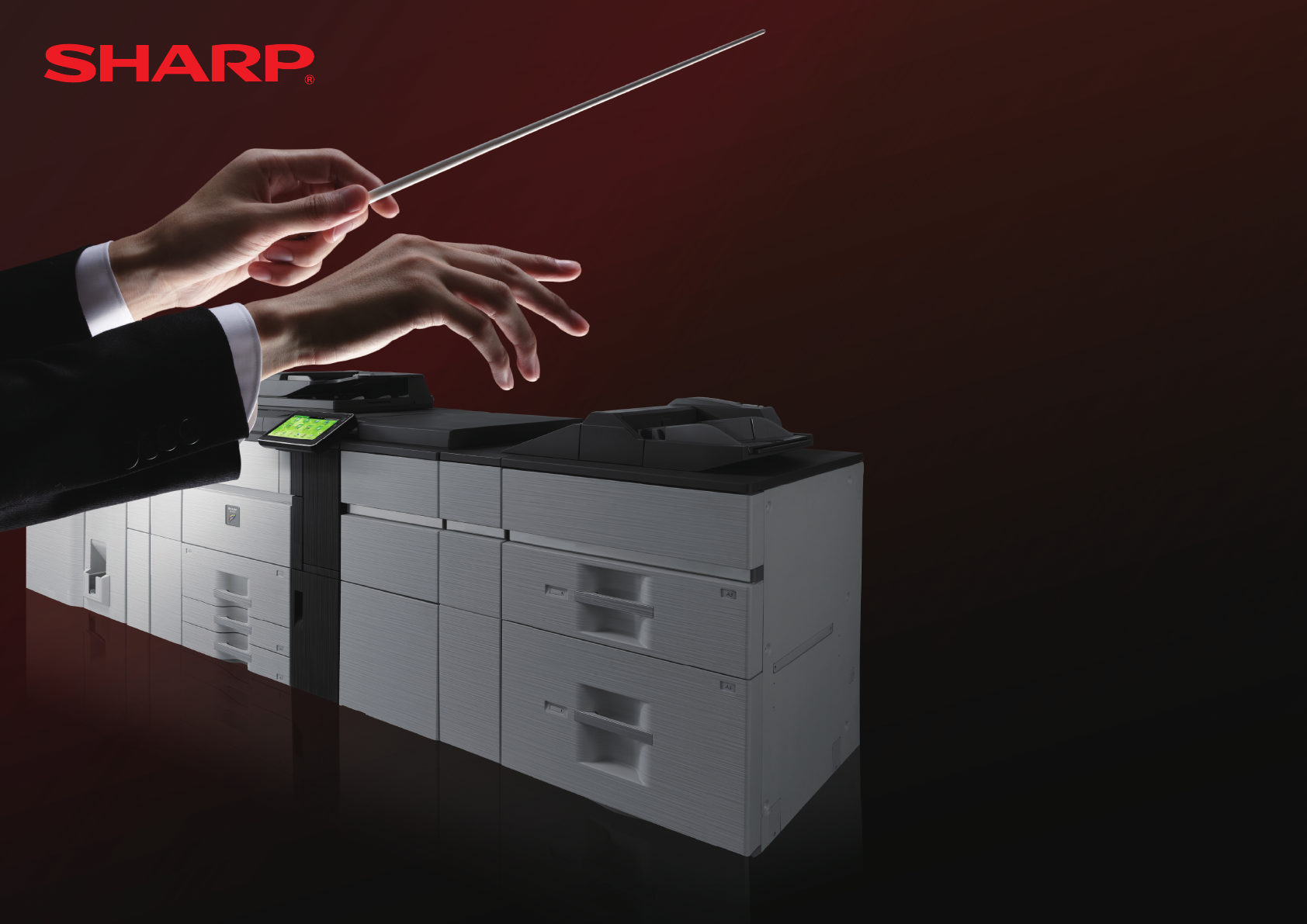
- QUICK START GUIDE 1
- BEFORE FIRST USE 2
- INFORMATION ON DISPOSAL 3
- Software Setup Guide (CD-PDF) 4
- User's Manual (PC) 4
- Operation Guide (Built-in) 4
- CAUTIONS 5
- Caution: 7
- HOME SCREEN 8
- Basic printing 9
- Copy settings 10
- Basic operations 10
- Exposure 11
- Original 11
- Scan settings 14
- File Format 15
- DOCUMENT FILING 16
- Job settings menu 17
- COPY OUTPUT 18
- Saddle Stitch 19
- Trimmer Setting 19
- Punch function 19
- Folding function 19
- MANUAL FINISHING 20
- SPECIFICATIONS 22
- Large Capacity Tray 23
- Large Capacity Trays 23
- Saddle stitch nisher 25
- Network Scanner Specications 27
- Inserter 27
- Folding Unit 27
- Trimming Module 27
- SUPPLIES 28
- Optional Units 29
- Punch Module 30
- Curl Correction Unit 30
- Setting mode password 31
- Noise emission 31
- SHARP CORPORATION 32
Podsumowanie treści
Keep this manual close at hand for reference whenever needed.BEFORE FIRST USE ...2INFORMATION ON DISPOSAL ...
10COPYColour modeAutomaticallyidentiescolourorblack&whiteto copyCopies in full colourCopiesinblack&whiteCopies in 2 coloursCopies
11ExposureSelects automatically BestformapscontainingnetextBest for text originalsBest for faint coloured originals such as those written using
12FAXExposureSelects automaticallyTouch a darker or lighter area to adjust shadingAddress bookTap this to display the address book screen to select a
13Job BuildTap this to switch the job build mode on or off.Setting it to On scans a large number of originals in segments.Slow Scan ModeTap this to sw
14SCANAddress BookTap this to display the address book screen to select a destination.Tap this to switch between To and Cc.Searches a destinationResol
15SCANFile FormatThisfunctionsetstheleformatandcompressionmode(ratio)ofsenddata.File format Compression mode Number of pages settingColou
16DOCUMENT FILINGThis function saves the original scanned on the machine, received fax data, or print data from a PC on the hard disk drive of the mac
17DOCUMENT FILINGYoucanselectthemethodtodisplayles.Listvieworthumbnailsviewcanbeselected. Viewing by folder Viewing by jobPrintsa
18ConguretheoutputsettingsforcopiesusingSort,Group,Offset,Staple,Punch,orFold.Basic operations1 Select [Output]2 Copy output settings3 C
19COPY OUTPUTSaddle Stitch(When a saddle nisher is installed)Copies can be folded at the centre, stapled, and output.(When a trimming module is insta
2BEFORE FIRST USEFor the users of the fax function Important safety instructions• If any of your telephone equipment is not operating properly, you
20MANUAL FINISHINGThisfunctionallowsyoutosetfornishoncopiedorprintedpages.Youcanselectthemanualnishingmodeiftheinserterisinst
21MANUAL FINISHINGStaple(When a nisher installed)This function staples the loaded paper sheets into a sheaf.1 staple in back1 staple in front2 Staple
22SPECIFICATIONSName MX-6240N/MX-7040NType ConsoleColour Full colourCopier system Laser electrostatic copierScanning resolutionScan (B/W): 600 × 600 d
23Name Duplex Single Pass Feeder (DSPF)Document feeder types Duplex Single Pass Feeder (DSPF)Original paper sizes A3 (11" × 17") to A5 (5-1/
24Name Finisher (50-sheet stapling)Paper sizes DependsonfeederspecicationsUseable paper 55 to 300 g/m2 Index (16 lbs. to 170 lbs.)No. of trays 2Tr
25Name Saddle Stitch Finisher (50-sheet stapling)Paper sizes DependsonfeederspecicationsUseable paper 55 to 300 g/m2 Index (16 lbs. to 170 lbs.)No
26Transmission timeApprox. 2 seconds *1 (A4 (8-1/2" × 11") Sharp standard paper, normal characters, Super G3 (JBIG))Approx. 6 seconds (G3 EC
27Type Colour scannerScan resolution (main × vertical)100 × 100 dpi, 150 × 150 dpi, 200 × 200 dpi, 300 × 300 dpi, 400 × 400 dpi, 600 × 600 dpi (push s
28SUPPLIESStandard supplies for this product that can be replaced by the user include paper, tonercartridges,andstaplecartridgesforthenisher.B
29OPTIONSOptional UnitsWhenoptionalunitsareinstalled,nishingoperationssuchasstapling,punchingorfolding,canbeperformed.With full instal
3INFORMATION ON DISPOSALInformation on Disposal for Users (private households) In the European UnionAttention: If you want to dispose of this equipme
30OPTIONSPunch ModulePunches copies and outputs them automatically to the tray.Punch Module (3 holes)MX-PN12B• For50-sheetstaplingnisher(MX-FN19
31Thisfunctionisusedtoforwardalldatasentandreceivedbythemachinetoaspecieddestination(ScantoE-mailaddress, Scan to FTP destinatio
MX-6240N/MX-7040NSHARP CORPORATIONQUICK START GUIDEPRINTED IN FRANCETINSE5039GHZZ
4Quick Start Guide (this document)Features important safety notes, names of parts and components, information about the power-on procedure, operation
5Symbols in this manualTo ensure safe use of the machine, this manual uses various safety symbols. The safety symbols are classiedasexplainedbelow
6CAUTIONSDo not insert or remove the power plug with wet hands.This may cause electrical shock.When removing the power plug from the outlet, do not pu
7NAMES OF PARTS AND POWER INPUTThe machine has two power switches: The main power switch inside the front cover located in the lower left corner, and
8Thisscreenappearsrst.Whenyoutouchanicon,thecorrespondingscreenappears. Pressing the [Home Screen] button ( ) on the operation panel also
9PRINTERBasic printing In a Windows environmentThis section explains how to print a document from "WordPad", which is a standard accessory
Więcej dokumentów dla Serwery Sharp MX-7040N


Powiązane produkty i podręczniki dla Serwery Sharp MX-7040N
 (12 strony)
(68 strony)
(45 strony)
(12 strony)
(68 strony)
(45 strony)
© 2020, manymanuals.pl. Wszelkie prawa zastrzeżone. | 0.024 s |
 Manymanuals.com
 Manymanuals.de
 Manymanuals.fr
 Manymanuals.it
 Manymanuals.pl
 Manymanuals.cz
 Manymanuals.es
 Manymanuals-pt.com
Komentarze do niniejszej Instrukcji