Sharp AR-651 Instrukcja Użytkownika Strona 1
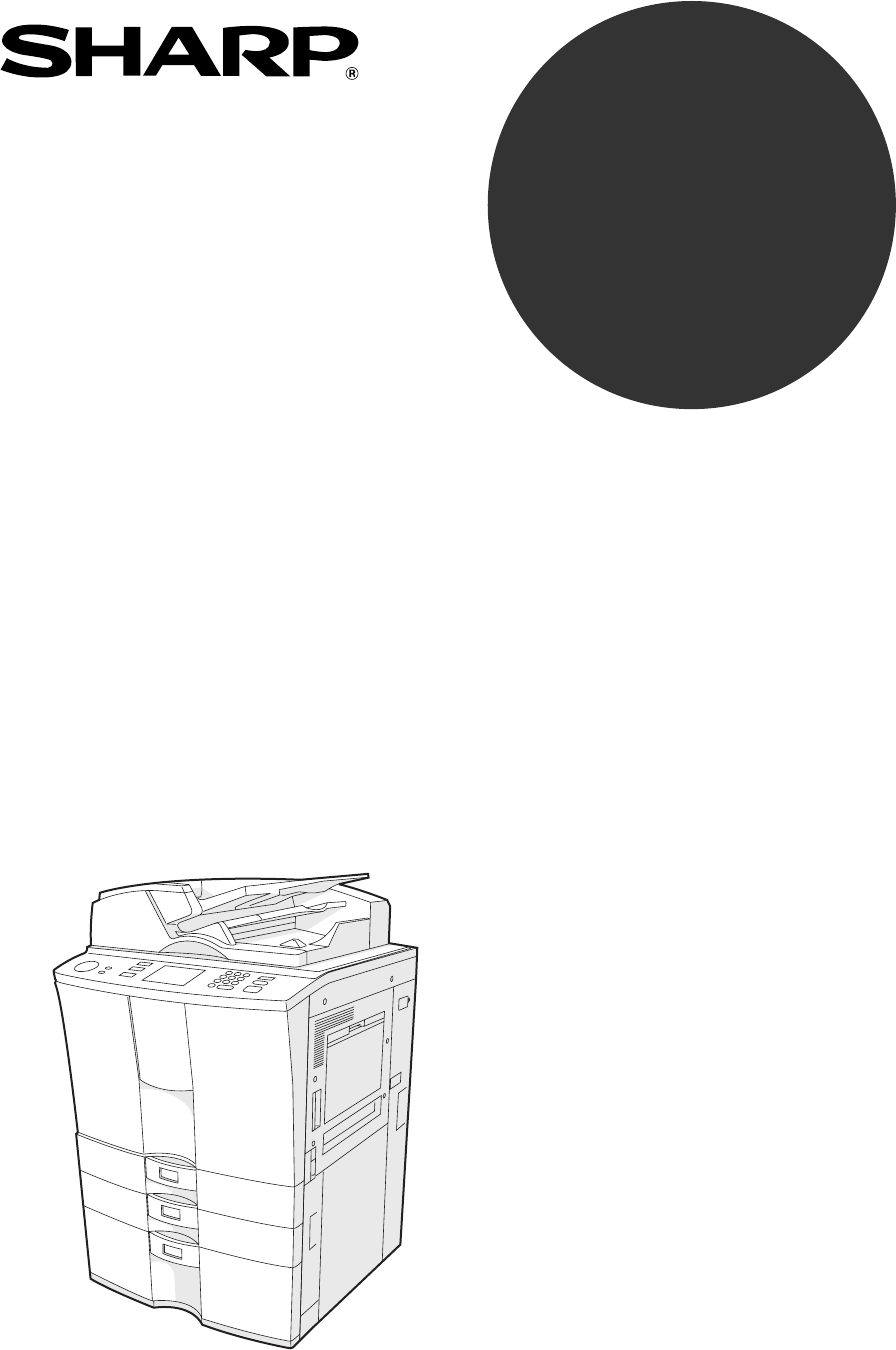
Przeglądaj online lub pobierz Instrukcja Użytkownika dla Drukarki Sharp AR-651. Sharp AR-651 User Manual Instrukcja obsługi
- Strona / 178
- Spis treści
- BOOKMARKI

- SHARP CORPORATION 1
- FCC NOTICE 3
- ENERGY STAR ® (MFD) 4
- PREFACE (Cont.) 6
- TABLE OF CONTENTS (Cont.) 8
- 1. Installation 11
- PRECAUTIONS (Cont.) 12
- Explanatory Label 13
- Certification Label 13
- Identification Label 13
- Warning Label 13
- To unlock 14
- 1. BEFORE MAKING COPIES 15
- BEFORE MAKING COPIES 16
- Optional Equipment 17
- Touch Panel 20
- 2. HOW TO MAKE COPIES 25
- HOW TO MAKE COPIES 26
- Exiting Copy Papers 27
- Handling and Storing Paper 29
- 2. SETTING COPY PAPER (Cont.) 30
- 3. SETTING ORIGINALS (Cont.) 34
- Exiting Originals 35
- Press the START key 37
- SETTING OF BASIC COPY MODES 44
- Manual Paper Selection 45
- Original Copy 49
- 4. USING THE EDITING 57
- FUNCTIONS 57
- USING THE EDITING FUNCTIONS 58
- *25.4mm = 1" 59
- -12- -13- -12 61
- 5. IMAGE EDITING (Cont.) 66
- Negative/Positive Reversal 67
- 2IN1 DUPLEX 68
- 4IN1 DUPLEX 68
- 11.15. 2002 14:54 70
- Select the paper type 72
- Tab paper back guide 78
- 12. TAB PAPER MODE(Cont.) 80
- Page 4-29 87
- 14. OVERLAY (Cont.) 88
- 5. USING THE SPECIAL 91
- 3. JOB MEMORY (Cont.) 96
- Confirming Stored Copy Jobs 97
- 4. BYPASS COPYING(cont.) 100
- * 25.4mm = 1" 101
- USING THE SPECIAL FUNCTIONS 102
- Number 1 234567 105
- Correcting Entered Letters 119
- 6. SELECTING FINISHING MODES 121
- Names of the Main Components 122
- SELECTING FINISHING MODES 124
- Setting Paper 129
- Setting the Inserter 130
- Press the START key 133
- 7. WHEN THE GRAPHIC SYMBOLS 135
- FLASH ON THE TOUCH PANEL 135
- Side guide 137
- Approx. 0.5mm Approx. 0.5mm 137
- 2. ADD PAPER SYMBOL (Cont.) 138
- Slide rail 139
- Label (orange) 141
- Shutter (orange) 141
- Type of originals 142
- C . If an inserter is to 143
- D instead 143
- Open the paper feed cover 146
- Open the bypass cover 146
- Remove any misfed paper 146
- Open the exit cover 147
- Metal area 148
- Fuser unit 148
- Blue knob 149
- 151
- Jammed staples 159
- CALL SERVICE SYMBOL 162
- PERIODIC MAINTENANCE MESSAGE 162
- 8. MAINTENANCE 163
- Items for Daily Check 164
- Weekly Maintenance 164
- Copier does not start 165
- Copy density is too low 165
- MAINTENANCE 166
- 9. SPECIFICATIONS & 167
- Face down 169
- SPECIFICATIONS & OPTIONS 172
- ➣➢➣➢➣➢➣➢➣➢➣➢➣➢➣➢➣➢➣ 177
Podsumowanie treści
DIGITAL COPYING MACHINEOPERATION MANUALMODELAR-651AR-810PRINTED IN JAPANXXXXXXXXXXXXAR-651/AR-810SHARP ELECTRONICS CORPORATIONSharp Plaza, Mahwah, New
1234567891011126The following notice sets out the exclusions and limitations of liability of SHARP Corp. (including its employees,agents and sub-contr
1234567891011125-10USING THE SPECIAL FUNCTIONS4. BYPASS COPYING(cont.)Bypass Copying on Standard Size Paper1perform steps 1 to 2 on pages 5-8, 5-9.-Se
1234567891011125-112Press the NON-STANDARD key.1Perform steps 1 to 3 on page 5-10.The size of non-standard paper is within the following ranges: L
1234567891011125-12USING THE SPECIAL FUNCTIONS3Press the desired Memory Number key.- When the paper size is ‘0mm’, the selected Memory Numberkey is va
1234567891011125-135. WEEKLY TIMERUsing the built-in weekly timer, you can have the copier automatically turned ON and OFF at specifiedtimes. For ins
1234567891011125-14USING THE SPECIAL FUNCTIONSWhen original or paper size is required to be specified and youneed to specify it to ‘OTHER’ size (excep
1234567891011125-152Key in the year (last two digits only), month, date,day of the week, time (24-hour format) and minutes,in this order from the left
1234567891011125-16USING THE SPECIAL FUNCTIONSPress the ENERGY SAVER or START key on the control panel. The copier starts to warm itselfup.8.
1234567891011125-17Turn ON the power switch once again when the copier is in the off-mode. Press the START key duringthe sleep mode. The copier s
1234567891011125-18USING THE SPECIAL FUNCTIONS1Press the PROGRAM key to enter the programmenu, and press the CHANGE LANGUAGES key.- If the desir
1234567891011125-1911. ACCOUNT NUMBERSYou can administer the copy quantity of each group by setting a account number for each purpose(co
1234567891011127PRECAUTIONS1. Installation1The AR-651/810 should be installed by a qualified service technician.Note: The packing material should be d
1234567891011125-20USING THE SPECIAL FUNCTIONS11. ACCOUNT NUMBERS (Cont.)5Input the master number name, and press the SETkey.- Entering letters Page
1234567891011125-212Key in the master number or the account number (5digits), then press SET key.- Registration of Account Number As shown belowIn
1234567891011125-22USING THE SPECIAL FUNCTIONS11. ACCOUNT NUMBERS (Cont.)2Press the ENABLE key, then SET key.3Press the account number where you w
1234567891011125-23Changing a Specific Account Number1Press the SET ACCOUNT NUMBERS key in theaccount menu.2Press the ENABLE key, then SET key.3
1234567891011125-24USING THE SPECIAL FUNCTIONS11. ACCOUNT NUMBERS (Cont.)5Input the account name you want to register, andpress the SET key.- Enteri
1234567891011125-253Press the account number where you want to deletethe account number, and press the DELETE key.4Press the YES key.- Deleting of
1234567891011125-26USING THE SPECIAL FUNCTIONS11. ACCOUNT NUMBERS (Cont.)3Press the account number you want to clear thecounter, and press the RESET
1234567891011125-27Print out account number*This function prints out the number of copies output for each account.1Press the PRINT OUT ACCOUNT NUMBER
1234567891011125-28USING THE SPECIAL FUNCTIONSThe following screen is provided for entering letters.* To enter numbers, use the digital keys on the co
1234567891011125-291Press the B Space key to delete “eeting”.2Press the CapsLock key to enter the capital letters.Example: Correct “Meeting” to “
12345678910111281Handle and use the copier gently and carefully.• Do not place anything on the paper drawers or the original feeding tray.• Never allo
1234567891011125-30USING THE SPECIAL FUNCTIONS5Press the B Space key to delete “M”.6Press the N key to enter “N”, then the SET key tofix the ent
1234567891011126-16. SELECTING FINISHING MODES(USING THE OPTIONAL FINISHERS AND INSERTER)1. Finishing modes and finishers (optional) ...
1234567891011126-2SELECTING FINISHING MODES1. FINISHING MODES AND FINISHERS (OPTIONAL)There are 2 types of optional finishers ( AR-F11 and AR-F12 ).
1234567891011126-3Select other copy modes as required.5Press the START key.2. SORT/GROUP COPYINGTo make multiple copies, you can select the sort m
1234567891011126-4SELECTING FINISHING MODES2Place the original(s). Page 2-93. STAPLE SORTING (OPTIONAL)1Place paper in the drawer(s). Page 2-4- Wh
1234567891011126-54Press the SINGLE STAPLE-1 (or DOUBLE STAPLE, SINGLE STAPLE-2 ) key.3Press the key on the basic screen as shown on theright (s
1234567891011126-6SELECTING FINISHING MODES123211129476583101127676123213Place the original(s). Page 2-9- When placing them in the reversing automat
1234567891011126-75Press the MAGAZINE SORT ( or MAGAZINE SORT & SADDLE STITCH or SADDLE STITCH ) key.- If the desired function keys are not
1234567891011126-8SELECTING FINISHING MODES2Place the original(s). Page 2-93Press the key on the basic screen as shown on theright (shaded).Number o
1234567891011126-9Slide1Place the paper in the inserter (optional) and alignthe slides to its size.- Place paper in face up.- For paper with a differe
1234567891011129Explanatory LabelCLASS 1 LASER PRODUCTAPPAREIL A LASER DE CLASSE 1LASER KLASSE 1PRODUCTO DE LASER DE CLASE 1>PS<Certification La
1234567891011126-10SELECTING FINISHING MODES6. INSERTER MODE (OPTIONAL)(Cont.)Blank paper placed in the optional inserter can be inserted into the pag
1234567891011126-119Press TOP COVER (or TOP & BACK COVER INSERT )key, then press the SET key.- For combining with the sheet insertion mode,
1234567891011126-12SELECTING FINISHING MODESSetting the Inserter (Cont.)6. INSERTER MODE (OPTIONAL)(Cont.)Sheet Insertion10 Key in the page number whe
1234567891011126-131 2Using only Staple and Hole PunchWhen installing the optional inserter, you can use only the finishing mode (staple and hole punc
1234567891011127-17. WHEN THE GRAPHIC SYMBOLSFLASH ON THE TOUCH PANEL1. Description of the flashing graphic symbols ... 7-22
1234567891011127-2WHEN THE GRAPHIC SYMBOLS FLASH ON THE TOUCH PANEL REPLACE TONER BAG symbolFlashes when the toner bag becomes full of usedtoner.
1234567891011127-3Side guideApprox. 0.5mm Approx. 0.5mmSide guideSlide rail Adding Paper to the Drawers1Pull the drawer out carefully until it comes t
1234567891011127-4WHEN THE GRAPHIC SYMBOLS FLASH ON THE TOUCH PANELMAXSlide rail AB1Pull the tandem LCF out carefully until it comes to astop.- Be car
1234567891011127-5Slide rail Adding Paper to the External LCF (Large Capacity Feeder)(optional)1Pull the external LCF out carefully until it comes toa
12345678910111210 Fixing the adjusters (stoppers)There are four adjusters (stoppers) located in front and rearbottom (two adjusters each) of the c
1234567891011127-6WHEN THE GRAPHIC SYMBOLS FLASH ON THE TOUCH PANELHolderWhen the toner cartridge runs out of toner, the REPLACETONER CARTRIDGE sym
1234567891011127-7Label (orange)Shutter (orange)4Holding the new toner cartridge as shown on theright, pull out the seal in the direction of the arrow
1234567891011127-8WHEN THE GRAPHIC SYMBOLS FLASH ON THE TOUCH PANELType of originalsA.B.C.A20,00030,00040,00050,00060,00070,00074,000A20,00030,00040,0
1234567891011127-94. CLEAR PAPER SYMBOL Reversing Automatic Document Feeder Inside of the Copier Bypass Guide External LCF (optional) Inserter (
1234567891011127-10WHEN THE GRAPHIC SYMBOLS FLASH ON THE TOUCH PANEL4. CLEAR PAPER SYMBOL (Cont.) Paper Misfeed in the Reversing Automatic Docum
1234567891011127-117Lifting the handle in the direction of the arrow, pullit toward you.6Open the original exit tray and remove any misfedoriginals.8R
1234567891011127-12WHEN THE GRAPHIC SYMBOLS FLASH ON THE TOUCH PANEL Paper Misfeed inside of the Copier1Open the paper feed cover.- When installing th
1234567891011127-136Remove any misfed paper.- If any paper is misfed in the cover, pull it out.- If any paper is misfed in the copier, open the front
1234567891011127-14WHEN THE GRAPHIC SYMBOLS FLASH ON THE TOUCH PANELMetal areaFuser unit4. CLEAR PAPER SYMBOL (Cont.)- If a sheet of paper is mi
1234567891011127-151Pull up the misfed paper slowly on the bypass guide. Paper Misfeed on the Bypass Guide Paper Misfeed in the External LCF (Large Ca
1234567891011121-11. BEFORE MAKING COPIES1. Description of the digital copier and the optional equipment ...1-2- Main components ...
1234567891011127-16WHEN THE GRAPHIC SYMBOLS FLASH ON THE TOUCH PANEL Paper Misfeed in the Inserter (optional)1Pull the inserter (optional) away from t
1234567891011127-174Pull down the grip.5Remove any misfed paper.Jammed paper might not be able to be removed while the holepunch unit is used. In
1234567891011127-18WHEN THE GRAPHIC SYMBOLS FLASH ON THE TOUCH PANEL2A Paper Misfeed in the Finisher (optional)4. CLEAR PAPER SYMBOL (Cont.)2R
1234567891011127-193Lift knob and then remove any misfed paper.( is indicated in the illustration of step 2 on page 7-18.) Paper Misfeed in the
1234567891011127-20WHEN THE GRAPHIC SYMBOLS FLASH ON THE TOUCH PANEL126Remove any paper misfed on the exit side of thesaddle stitch unit.7Open the exi
1234567891011127-215. ADDING STAPLES (OPTIONAL)When the staple cartridge runs out of staples, if the optional finisher is installed, the following mes
1234567891011127-22WHEN THE GRAPHIC SYMBOLS FLASH ON THE TOUCH PANEL5. ADDING STAPLES (OPTIONAL) (Cont.)6Return the staple cartridge to its original p
1234567891011127-233Pull out the grip of the saddle staple holder towardyou and turn it 90o clockwise in the direction of thearrow.4Remove the empt
1234567891011127-24WHEN THE GRAPHIC SYMBOLS FLASH ON THE TOUCH PANEL1Perform steps 1 to 2 of the procedure for “5. ADDINGSTAPLES Finisher
1234567891011127-25Jammed staplesStapler5Return the staple case to its original position.- Insert the cartridge until it is caught by the claw and fix
1234567891011121-2BEFORE MAKING COPIES1. DESCRIPTION OF THE DIGITAL COPIER AND THE OPTIONAL EQUIPMENTMain ComponentsOriginal scalesControl panelDrawer
1234567891011127-26WHEN THE GRAPHIC SYMBOLS FLASH ON THE TOUCH PANEL5Return the staple case to its original position.6. REMOVING JAMMED STAPLES (OPTIO
1234567891011127-277. DISPOSING OF ACCUMULATED PUNCHED PAPER BITS (OPTIONAL)When paper bits punched from copies have accumulated to a certain level, t
1234567891011127-28WHEN THE GRAPHIC SYMBOLS FLASH ON THE TOUCH PANELSince heaters are used to fix toner images to the copy paper, a safety circuit is
1234567891011128-18. MAINTENANCE1. Daily inspection ... 8-22. Simple troubleshoo
1234567891011128-2MAINTENANCEOriginalglassScanningarea1. DAILY INSPECTIONItems for Daily CheckPower switch ON/OFF statusWe recommend turning the power
1234567891011128-3Press the START or ENERGY SAVER keyon the control panel to clear the automatic en-ergy saving mode. (It takes a while for the c
1234567891011128-4MAINTENANCEIs the reversing automatic docu-ment feeder firmly closed?Is the original cover or the trans-port belt of the reversing a
1234567891011129-19. SPECIFICATIONS &OPTIONS1. Specifications ... 9-22. S
1234567891011129-2SPECIFICATIONS & OPTIONS1. SPECIFICATIONSPower Requirements 115V, 50/60Hz, 20ADimensions 27.48"(W) x 30.59"(D) x 47.76
1234567891011129-3Continuous Copying Speedsheets/min.* The values above are measured when originals are set on the original glass, 1-Sided, 100% and n
1234567891011121-3Optional Equipment Finisher Hole punch unit External LCF (Large Capacity Feeder)Optional Equipment Configuration InserterFinishe
1234567891011129-4SPECIFICATIONS & OPTIONS2. SPECIFICATONS OF OPTIONSWeight Approx. 92.59 lb. Approx. 136.7 lb.Saddle Stitch Unit No YesStitching
1234567891011129-5 North America 2 / 3 holes switchable 2 holes: LG, LT-R(AR-PN3B) (0.315" dia. ) 3 holes: LD, LT, A3, A4Weight Approx. 88.2 lb
1234567891011129-6SPECIFICATIONS & OPTIONS3. PACKING LISTPhotoconductive DrumPhotoconductive Drum CoverOperator’s manual PocketPacking List Operat
1234567891011129-74. INDEXNumbers2 IN 1 ... 4-122 IN 1 DUPLEX ...
1234567891011129-8SPECIFICATIONS & OPTIONS4. INDEX (Cont.)Duplex Copying ... 3-7EEdge Erase ...
1234567891011129-9Paper Misfeed in the Saddle Stitch Unit AR-F12 ...7-19Paper Misfeed on the Bypass Guide ... 7-15Papers Acceptable to Set
1234567891011129-10SPECIFICATIONS & OPTIONS4. INDEX (Cont.)When Coming Across the Situations below ... 2-3When Placing an Original on the Glass
❧❧❧❧❧❧❧❧❧❧❧❧❧❧❧❧❧❧❧❧❧❧❧❧❧❧❧❧❧❧❧❧❧❧❧❧❧❧❧❧❧❧❧❧❧❧❧❧❧❧❧❧❧❧❧❧❧❧❧❧❧❧❧❧❧❧❧❧❧❧❧❧❧❧❧❧❧❧❧❧❧ ❧❧❧❧❧❧❧❧❧❧❧❧❧❧❧❧❧❧❧❧❧❧❧❧❧❧❧❧❧❧❧❧❧❧❧❧❧❧❧❧❧❧❧❧❧❧❧❧❧❧❧➢➣➢➣➢➣➢➣➢➣➢➣➢➣➢➣➢
DIGITAL COPYING MACHINEOPERATION MANUALMODELAR-651AR-810PRINTED IN JAPANXXXXXXXXXXXXAR-651/AR-810SHARP ELECTRONICS CORPORATIONSharp Plaza, Mahwah, New
1234567891011121-4BEFORE MAKING COPIES1. DESCRIPTION OF THE DIGITAL COPIER AND THE OPTIONAL EQUIPMENT (Cont.)Control PanelTotal CounterShows the tota
1234567891011121-5CLEAR ALL keyWhen this key is pressed, all selected copy modes are cleared to default settings. Page 2-2* Automatic CLEAR ALL Rig
❧❧❧❧❧❧❧❧❧❧❧❧❧❧❧❧❧❧❧❧❧❧❧❧❧❧❧❧❧❧❧❧❧❧❧❧❧❧❧❧❧❧❧❧❧❧❧❧❧❧❧❧❧❧❧❧❧❧❧❧❧❧❧❧❧❧❧❧❧❧❧❧❧❧❧❧❧❧❧❧❧ ❧❧❧❧❧❧❧❧❧❧❧❧❧❧❧❧❧❧❧❧❧❧❧❧❧❧❧❧❧❧❧❧❧❧❧❧❧❧❧❧❧❧❧❧❧❧❧❧❧❧❧➢➣➢➣➢➣➢➣➢➣➢➣➢➣➢➣➢
1234567891011121-6BEFORE MAKING COPIES1. DESCRIPTION OF THE DIGITAL COPIER AND THE OPTIONAL EQUIPMENT (Cont.)Touch PanelThe following information is
1234567891011121-7Clearing the Functions SelectedThe icons displayed on the screen are as follows(some icons may not appear on the screen):If you pres
1234567891011121-8BEFORE MAKING COPIES2. TURNING ON THE POWER SWITCHTurning ON the Power Switch/Auto Job Start2When “READY” appears, the copier is
1234567891011121-9Controlling the Use of the Copier with Account Numbers1When the account number function is in use, thescreen shown on the right appe
1234567891011122-12. HOW TO MAKE COPIES1. General copying procedures ... 2-22. Setting copy paper...
1234567891011122-2HOW TO MAKE COPIESInitial (default) settings1. GENERAL COPYING PROCEDURESAfter placing, or confirming that there is, paper in the dr
1234567891011122-3 - After starting copying, press the JOB STATUS key on the control panel, then press the STATUS key on the touch panel to i
1234567891011122-4HOW TO MAKE COPIES*1 Automatic duplex copying is not available.*2 Available only when non-sort non-staple mode. Staple and hole punc
1234567891011122-5Pay attention to the following points:- Avoid using paper that is specially treated or paper that was printed on another machine, an
1FCC NOTICEThis equipment has been tested and found to comply with the limits for a Class A digital device,pursuant to Part 15 of the FCC Rules. These
1234567891011122-6HOW TO MAKE COPIESSlide rail2. SETTING COPY PAPER (Cont.)Changing the Paper Size of the Drawer/Setting the Drawer for Special UsesTh
1234567891011122-78Press the JOB STATUS key on the control panel,then the CASSETTE key on the touch panel.9Press the drawer key corresponding to t
1234567891011122-8HOW TO MAKE COPIES2. SETTING COPY PAPER (Cont.)Changing the Paper Size of the Drawer/Setting the Drawer for Special Uses(Cont.)3Pres
1234567891011122-9Acceptable Original Types and SizesMaximum number of sheets (all sizes) can be set in the reversing document feeder: 100 sheets (20
1234567891011122-10HOW TO MAKE COPIES3. SETTING ORIGINALS (Cont.)1Raising the reversing automatic document feeder,place the original in the direction
1234567891011122-11When Using the Reversing Automatic Document FeederOriginals in progress automatically exit on or dependingupon the size of ori
1234567891011122-12HOW TO MAKE COPIESWhen the number of originals is too large to be set at one time,you can divide the originals into two to ten sets
1234567891011122-134. AUTO JOB START (JOB PRESET)While multi-copying is in process, you can reserve the next copy.1Place the original(s). Page 2-92P
1234567891011122-14HOW TO MAKE COPIES5. INTERRUPT COPYING4After you have finished interrupt copying, press theINTERRUPT key again.- The following mes
1234567891011122-151Press the STOP key on the operational panelduring the multicopying operation.If you want to stop the operation during scanning
2EPA ENERGY STAR ® (MFD)The United States Environmental Protection Agency (EPA) has introduced a voluntary program, the ENERGYSTAR Program, to encoura
1234567891011122-16HOW TO MAKE COPIESIf data is waiting to be printed, you can delete them, or change the printing order.7. DELETING OR CHANGING ORDER
1234567891011122-17Changing the Printing Order1Press the JOB STATUS key on the control panel,then the JOB LIST key on the touch panel.2Select the
1234567891011123-13. SETTING OF BASIC COPY MODES1. Paper selection ... 3-2- Aut
1234567891011123-2SETTING OF BASIC COPY MODES1. PAPER SELECTIONAutomatic Paper Selection (APS)- If the Automatic Paper Selection mode is not selected,
1234567891011123-33On the basic screen, press the drawer iconrepresenting the desired paper size.1Place paper in the drawer(s). Page2-4- When using
1234567891011123-4SETTING OF BASIC COPY MODES2. REDUCTION AND ENLARGEMENT COPYINGWhen placing originals on the glass, you can copy them at the reducin
1234567891011123-55Press the START key.4Press the ORIGINAL SIZE key of the same size asthe original.- Using the original size and copy size, the
1234567891011123-6SETTING OF BASIC COPY MODES2. REDUCTION AND ENLARGEMENT COPYING (Cont.)3Press the drawer icon representing the desired copypaper siz
1234567891011123-7-12--13--15- -12- -13- -15--13--13-3. DUPLEX COPYING (1-SIDED, 2-SIDED, BOOK-TYPE)This function allows you to set the type of ori
1234567891011121PREFACECOPYRIGHT 2002SHARP CORPORATIONThank you for purchasing the Sharp Digital Copier AR-651/810. This Operator’s Manual describes
1234567891011123-8SETTING OF BASIC COPY MODES3. DUPLEX COPYING (1-SIDED, 2-SIDED, BOOK-TYPE) (Cont.)3Press the key (shaded) on the right basic screen.
1234567891011123-93Select the book copying type.- Press the RIGHT RIGHT key if copying should start at aright-hand page and end at a right-hand pag
1234567891011123-10SETTING OF BASIC COPY MODES7Turn to the next page, set the book again and pressthe START key.- Repeat the procedure above until
1234567891011123-114Press the START key.- If the automatic density mode is not selected, press theMANUAL key, then press the AUTO key on the ne
1234567891011123-12SETTING OF BASIC COPY MODES4. COPY DENSITY ADJUSTMENT (Cont.)- When the DENSITY LEVEL key is shown on the lower leftof the screen,
1234567891011123-135. SELECTING ORIGINAL MODEAccording to the type of your originals, you can choose among the three image types: Photo, Text or Text/
1234567891011123-14SETTING OF BASIC COPY MODES6. QUICK ACCESS MENUFinishing copy and duplex modes can be performed at the same time on one display by
1234567891011124-14. USING THE EDITINGFUNCTIONS1. Image shift... 4-22. Ed
1234567891011124-2USING THE EDITING FUNCTIONS1. IMAGE SHIFT1Place paper in the drawer(s). Page 2-4- When using this mode in bypass copying, be sure
1234567891011124-31Press the EDIT key to enter the edit menu, andpress the IMAGE SHIFT key.3Adjust the width of the margin, then press the SETkey
1234567891011122PREFACE (Cont.)Features of the AR-651/810The AR-651/810 is a digital copier which is high-speed, compact and high-durability. The AR
1234567891011124-4USING THE EDITING FUNCTIONS3Press the EDIT key to enter the edit menu, and pressthe EDGE ERASE key. Select other copy modes as
1234567891011124-52Press the EDIT key to enter the edit menu, and pressthe DUAL PAGE key.5If you need a binding margin, set the left margin. Page
1234567891011124-6USING THE EDITING FUNCTIONS7Turn to the next page, set the book again and pressthe START key.- Repeat the above procedure until a
1234567891011124-75Press the lower SET key.4Set the reproduction ratios for the X (horizontal) andY (vertical) directions, respectively.- Using the
1234567891011124-8USING THE EDITING FUNCTIONS3Press the TRIM (or MASK ) key.2Press the EDIT key to enter the edit menu, andpress the EDITING key
1234567891011124-96Enter the distance values read in step 5 for thespecified area.- Key in the value for X1 with the digital keys and press theupper
1234567891011124-10USING THE EDITING FUNCTIONS Select other copy modes as required.5Press the START key.3Press the EDIT key to enter the edit me
1234567891011124-11 Select other copy modes as required.5Press the START key.2Place the original(s). Page 2-93Press the EDIT key to enter the
1234567891011124-12USING THE EDITING FUNCTIONSWhen a copy is turned with the line —·—·— as a pivot, originals are printed on side 2 (back face) as sho
1234567891011124-13 Select other copy modes as required.6Press the START key.- When placing an original on the glass, perform steps 5 and6 on page
1234567891011123TABLE OF CONTENTSPreface ...
1234567891011124-14USING THE EDITING FUNCTIONSCopies are made with the current date and time, at which they are made, printed on the copy.Date and tim
1234567891011124-15This feature allows numbers to be added at specified position to copies.Page number printed at thebottom center on the portrait cop
1234567891011124-16USING THE EDITING FUNCTIONSThe magazine sort mode allows 1-sided originals to be copied and sorted so that they can be folded andbo
1234567891011124-17- If the optional saddle stitch finisher (AR-F12) is installed,copies can be automatically stapled along their center line.To have
1234567891011124-18USING THE EDITING FUNCTIONSA top cover and/or back cover (special sheets, e.g. colored paper) can be added to each set of copies.-
1234567891011124-19When TOP COPIED key or TOP COPIED BACK BLANKkey is selected, the cover sheet can be copied only on thetop face (single-side) th
1234567891011124-20USING THE EDITING FUNCTIONSSpecial sheets of paper (such as colored paper) are inserted into a set of copies at specified pages.The
1234567891011124-216Key in the desired page number (no more than 3digits) for insertion and press the upper SET key.- On the display, the page where
1234567891011124-22USING THE EDITING FUNCTIONSTab paper back guideSlide rail12. TAB PAPER MODETab paper copy and insertion are available.Tab Paper Cop
1234567891011124-23To copy on tab paper, adjust both the tab width and the shift width for the drawer and the bypass guiderespectively. Tab Width Adju
1234567891011124TABLE OF CONTENTS (Cont.)4.Using the editing functions ...
1234567891011124-24USING THE EDITING FUNCTIONSTab widthAlign the tab paper withthe original scaleOriginal scaleShift widthAlign the original withthe o
1234567891011124-251Place tab paper in the drawer or the bypass guide.- For placing it in the drawer Page 4-22- For placing it in the bypass guide
1234567891011124-26USING THE EDITING FUNCTIONS5Key in the page number you selected for the insertion ofthe tab paper , then press the upper SET key.
1234567891011124-275Key in the page number you selected for the insertion ofthe tab paper, then press the upper SET key.- When two sheets of paper o
1234567891011124-28USING THE EDITING FUNCTIONS13. DOCUMENT STORAGEThis feature allows images of the originals to be stored on the hard disk of the cop
1234567891011124-295Press the START key.- The memorization process starts automatically.- To change the file name, select the ID you want to chang
1234567891011124-30USING THE EDITING FUNCTIONS14. OVERLAYThis function stores the images that you frequently use and makes copies by overlaying onto t
1234567891011124-31Confirming Stored Image (Test Print)1Perform steps 2 and 3. Page 4-292Press the file name you desire (the selected file namewill
1234567891011124-32USING THE EDITING FUNCTIONS14. OVERLAY (Cont.)Overlaying Originals with Stored Image4Press the OVERLAY key.5Press the file name you
1234567891011124-3315. SHARPNESS ADJUSTMENT5Press the SET key. Select other copy modes as required.2Place the original(s). Page 2-93Press the EDI
12345678910111259.Specifications & Options ...
1234567891011124-34USING THE EDITING FUNCTIONS16. DIRECTION OF DUPLEX COPY IMAGES (Rotation)When lengthwise LD, A3, A5 or B4 paper is copied under the
1234567891011125-15. USING THE SPECIALFUNCTIONS1. Continuous original feeding / Single original feeding ... 5-22. Mixed-sized originals ..
1234567891011125-2USING THE SPECIAL FUNCTIONS Select other copy modes as required.5Press the START key.3Press the PROGRAM key to enter the prog
1234567891011125-32Press the PROGRAM key to enter the programmenu, and press the ADF key.Single-feed Mode3Press the SADF key. Select other copy
1234567891011125-4USING THE SPECIAL FUNCTIONS2. MIXED-SIZED ORIGINALS Select other copy modes as required.6Press the START key.2Adjust the slide t
1234567891011125-52Press the PROGRAM key to enter the programmenu, and press the JOB MEMORY key.3. JOB MEMORYStoring a Combination of Copy Job S
1234567891011125-6USING THE SPECIAL FUNCTIONS4Press the RECALL key.3. JOB MEMORY (Cont.)2Place the original(s). Page2-9Recalling a Stored Combinati
1234567891011125-7To confirm the copy modes stored in the Memory Number key,perform steps 3 to 5 on the previous page, then press theSETTINGS key.Co
1234567891011125-8USING THE SPECIAL FUNCTIONSMAX4. BYPASS COPYINGWhen you want to make copies on thick paper, OHP film, tab paper, tracing paper, stic
1234567891011125-94After selecting the paper type corresponding to thetype of the paper that has been set, press the SETkey.- When selecting OHP film,
Powiązane produkty i podręczniki dla Drukarki Sharp AR-651
 (12 strony)
(104 strony)
(146 strony)
(55 strony)
(148 strony)
(84 strony)
(56 strony)
(80 strony)
(112 strony)
(11 strony)
(311 strony)
(168 strony)
(310 strony)
(12 strony)
(12 strony)
(104 strony)
(146 strony)
(55 strony)
(148 strony)
(84 strony)
(56 strony)
(80 strony)
(112 strony)
(11 strony)
(311 strony)
(168 strony)
(310 strony)
(12 strony)
© 2020, manymanuals.pl. Wszelkie prawa zastrzeżone. | 0.036 s |
 Manymanuals.com
 Manymanuals.de
 Manymanuals.fr
 Manymanuals.it
 Manymanuals.pl
 Manymanuals.cz
 Manymanuals.es
 Manymanuals-pt.com
Komentarze do niniejszej Instrukcji