43
SUPERB PRINT QUALITY / FULL-FUNCTION EASE
SUPERB PRINT QUALITY / FULL-FUNCTION EASE
4.3-Inch Colour LCD
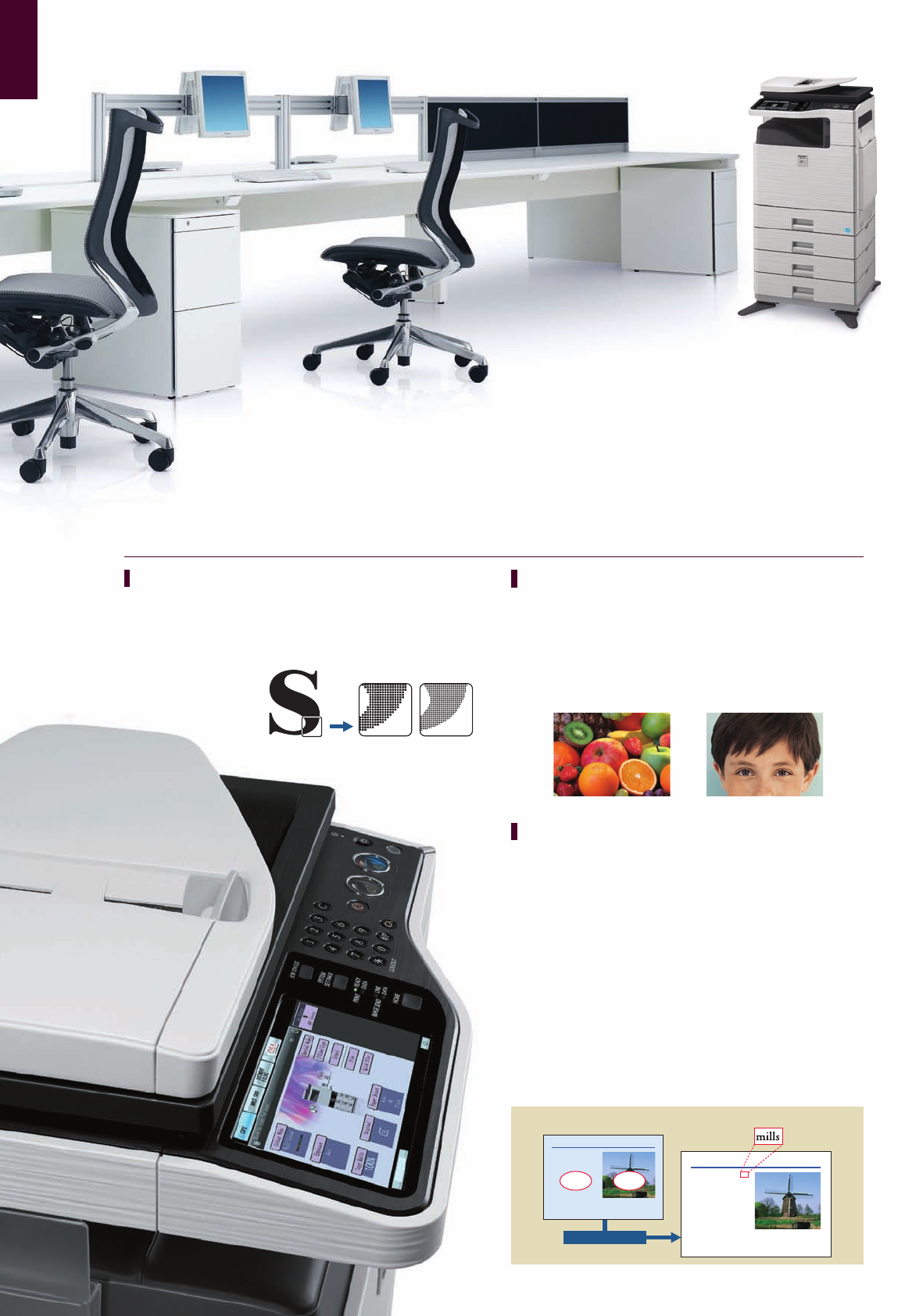
The control panel on the MX-C380/C310 features a 4.3-inch
colour LCD that conveniently displays job-progress information
and other items. The control panel also boasts a special Shortcut
Key for easy access to frequently used settings and Sharp OSA
(Open Systems Architecture) applications.
Note: See page 6 for more information on Sharp OSA.
USB Memory-Ready
The MX-C381/C311/C380/C310 offers a whole new level of
convenience with two USB ports. One of those ports is located at
the front of the MFD right beneath the control panel. It comes in
handy when scanning documents directly to USB memory devices
or printing data directly from USB memory devices—an
indispensable function for users who are in a hurry or who want
quick machine access without a PC.
Business Card Feeder*
The optional Business Card Feeder automatically feeds in and
scans business cards and can be used with commercially available
business card scan software to create business card databases. A
pocket on the left side of the MFP provides handy storage of the
Business Card Feeder.
* Available at a later date
Job Status Screen
s7HETHERPRINTINGORCOPYINGTHE-8##SCONTROLPANEL
DISPLAYSALISTOFALLJOBSSHOWINGYOUATAGLANCETHEJOBSIN
PROGRESSANDTHEPOSITIONOFYOURJOBINTHEQUEUE7ITHAFEW
QUICKTOUCHESOFTHE,#$SCREENTHE0RIORITY0RINTINGFUNCTION
lets you easily change the job queue order or delete jobs that
are no longer needed.
s/NTHERIGHTSIDEOFTHE,#$YOULLFINDASIMPLIFIEDVERSIONOF
the Job Status display. This lets you quickly confirm the first four
jobs in the queue without having to go to the Job Status screen.
The display also provides a quick rundown on MFD system
status.
Thumbnail Display* and Previews
s-AKINGTHESEARCHFORFILESEASIERANDMORECONVENIENTTHAN
EVERTHUMBNAILSANDUPCLOSEPREVIEWSOF$OCUMENT&ILINGDATA
FILESASWELLASCONVENTIONALFILENAMESCANBEDISPLAYEDONTHE
-8##S,#$CONTROLPANEL4OHELPUSERSDECIDEWHICH
DOCUMENTSTOPRINTOUTTHE,#$CANALSODISPLAYTHUMBNAILS
and previews of incoming faxes and Internet faxes.
s4HE-8#S,#$CONTROLPANELDISPLAYSPREVIEWSOF
incoming faxes and Internet faxes as well as previews of fax data
stored in the Memory Box.
!VAILABLEON-8##SINCH,#$
Job status
)NCH4OUCH3CREEN,#$
4HE-8##SLOGICALLYDESIGNEDCONTROLPANELFEATURESAWIDECLEAR76'!RESOLUTIONTOUCHSCREEN,#$WITHACHOICEOFSIXSCREEN
COLOURS0USHINGTHE(OMEBUTTONEVENINTHEMIDDLEOFANOPERATIONTAKESYOUBACKTOTHE3TARTSCREEN!DDITIONALYYOUCANQUICKLYACCESSTHE
most frequently used functions and settings by programming them into My Menu.
MX-C381 MX-C311
Home screen 17%249KEYBOARDSCREEN
MX-C380 MX-C310
MX-C381 MX-C311
FULL-FUNCTION EASE
SUPERB PRINT QUALITY
Improved Imaging System
Sharp thoroughly revamped its imaging process for the MX-C381/
###NOWAHIGHPERFORMANCEPROCESSORANEW
DEVELOPERANDTHENEWLYDEVELOPEDHIGHGRADETONERCOMBINETO
provide breathtaking image quality. The smaller particle size of the
toner and the developer allows for reduced graininess and clear
reproduction of fine lines and halftone colours.
%ASY(IGH1UALITY#OPYING
The MX-C381/C311/C380/C310 features third-generation
Sharp Auto Colour ModeANYONEWITHJUSTAPUSHOFTHESTART
button—can easily and automatically make copies that are faithful
TOTHEORIGINAL(ERESHOWITWORKSAuto Colour Selection
AUTOMATICALLYDETERMINESWHETHERAPAGEISCOLOUROR"7AND
selects the appropriate copy mode for that page. Auto Colour
ModeANALYSESTHECONTENTSOFEACHPAGEDISTINGUISHINGBETWEEN
DIFFERENTCOMPONENTSSUCHASPHOTOSANDTEXT4HISISWHATALLOWS
THE-8####TOPRINTOUTMAPSWITHCRISPCLEAR
text and to automatically remove the background colour on
NEWSPAPERANDMAGAZINECOPIESFORCLEAREROUTPUT7HENCOPYING
IN"7MULTILEVELERRORDIFFUSIONTECHNOLOGYPROVIDESDRAMATICALLY
smoother gradation in photos and subtle greyscale images.
4RUEXDPI0RINTING
4HE-8####SPRINTENGINEPROVIDES
RAZORSHARPDPIPRINTINGWITHOUTSACRIFICINGOUTPUT
speed—for ultra-clear image quality. Fine lines and small text come
out crisper and easier to read.
4HIRDGENERATION'3HARP!UTO#OLOUR-ODE
Windmills of the Netherlands
For centuries, the Dutch used windmills
to mill corn into our, drain water from
the land, cut timber into boards, and
carry out various other industrial tasks.
At one time, over 9,000 windmills
dotted the Dutch countryside. And,
although that number has dwindled
down to just over a thousand, many
people still associate the Netherlands
with its majestic windmills.
To harness the power of the wind, the
Dutch built a variety of windmills, with the name of each type determined by the
construction, appearance, or function of the mill. These mills sported a somewhat
primitive design that used canvas sails and that, unlike their more automated British
counterparts, had to be turned by hand to face the wind.
Auto recognition
Windmills of the Netherlands
For centuries, the Dutch used windmills
to mill corn into our, drain water from
the land, cut timber into boards, and
carry out various other industrial tasks.
At one time, over 9,000 windmills
dotted the Dutch countryside. And,
although that number has dwindled
down to just over a thousand, many
people still associate the Netherlands
with its majestic windmills.
To harness the power of the wind, the
Dutch built a variety of windmills, with the name of each type determined by the
construction, appearance, or function of the mill. These mills sported a somewhat
primitive design that used canvas sails and that, unlike their more automated British
counterparts, had to be turned by hand to face the wind.
TEXT
Text comes out
crisp and clear
600DPI $0)
Thumbnail display* Preview display
ON-8##SINCH,#$
PHOTO



 (20 strony)
 (57 strony)
 Manymanuals.com
 Manymanuals.de
 Manymanuals.fr
 Manymanuals.it
 Manymanuals.pl
 Manymanuals.cz
 Manymanuals.es
 Manymanuals-pt.com
Komentarze do niniejszej Instrukcji