Sharp AR-M620N Dokumentacja Strona 91
- Strona / 172
- Spis treści
- ROZWIĄZYWANIE PROBLEMÓW
- BOOKMARKI

- AR-M550U 1
- AR-M620U 1
- AR-M550N 1
- AR-M620N 1
- Part 1: General Information 3
- PRODUCT CONFIGURATIONS 5
- OPERATION MANUALS 5
- INSTALLATION REQUIREMENTS 6
- CAUTIONS 7
- Laser Information 8
- CONTENTS 10
- CHAPTER 1 11
- INTRODUCTION 12
- MAIN FEATURES 13
- *AR-M550N or AR-M620N only 15
- Back of 16
- Front of 16
- Energy saving features 18
- PART NAMES AND FUNCTIONS 19
- Interior 20
- ■ Other optional equipment 21
- Operation panel 22
- Touch panel 23
- "JOB QUEUE" screen 24
- "COMPLETE" 24
- TURNING THE POWER ON AND OFF 26
- AUDITING MODE 27
- CHAPTER 2 29
- LOADING PAPER 30
- Loading paper in paper tray 3 31
- Tabbed paper 32
- Original 32
- Label facing down 35
- ■ User type 39
- Trays 3 and the bypass tray 40
- Inserter (option) 40
- T 12-HOUR 42
- About the settings 43
- GENUINE SUPPLIES 45
- MISFEED REMOVAL 46
- Remove the duplex unit 47
- Gently close the duplex unit 47
- Misfeed in the duplex unit 48
- Roller rotating knob A 49
- ■ Misfeed in the bypass tray 51
- ■ Misfeed in the tray 5 52
- REMOVING AN ORIGINAL MISFEED 53
- CHAPTER 3 57
- Part names 58
- Specifications 58
- ■ Supplies 59
- Printouts 60
- Offset mode Non-offset mode 60
- Staple sort 61
- Stapling area 65
- Jammed staples 66
- Removing a misfeed 67
- INSERTER 70
- Loading paper 71
- Load paper in the inserter 72
- Press the desired mode key 72
- Misfeed removal 73
- Part 2: Copier Operation 75
- CHAPTER 4 77
- AUTOMATIC DOCUMENT FEEDER 78
- PLACING ORIGINALS 79
- Document feeder tray 80
- Document glass 80
- [Example 1] 80
- [Example 2] 80
- CHECKING THE SIZE OF A PLACED 81
- STORING, DELETING, AND USING 82
- ORIGINAL SIZES 82
- NORMAL COPYING 83
- 2-SIDED COPY 84
- QUICK FILE 84
- READ-END 88
- ADJUSTING THE EXPOSURE 90
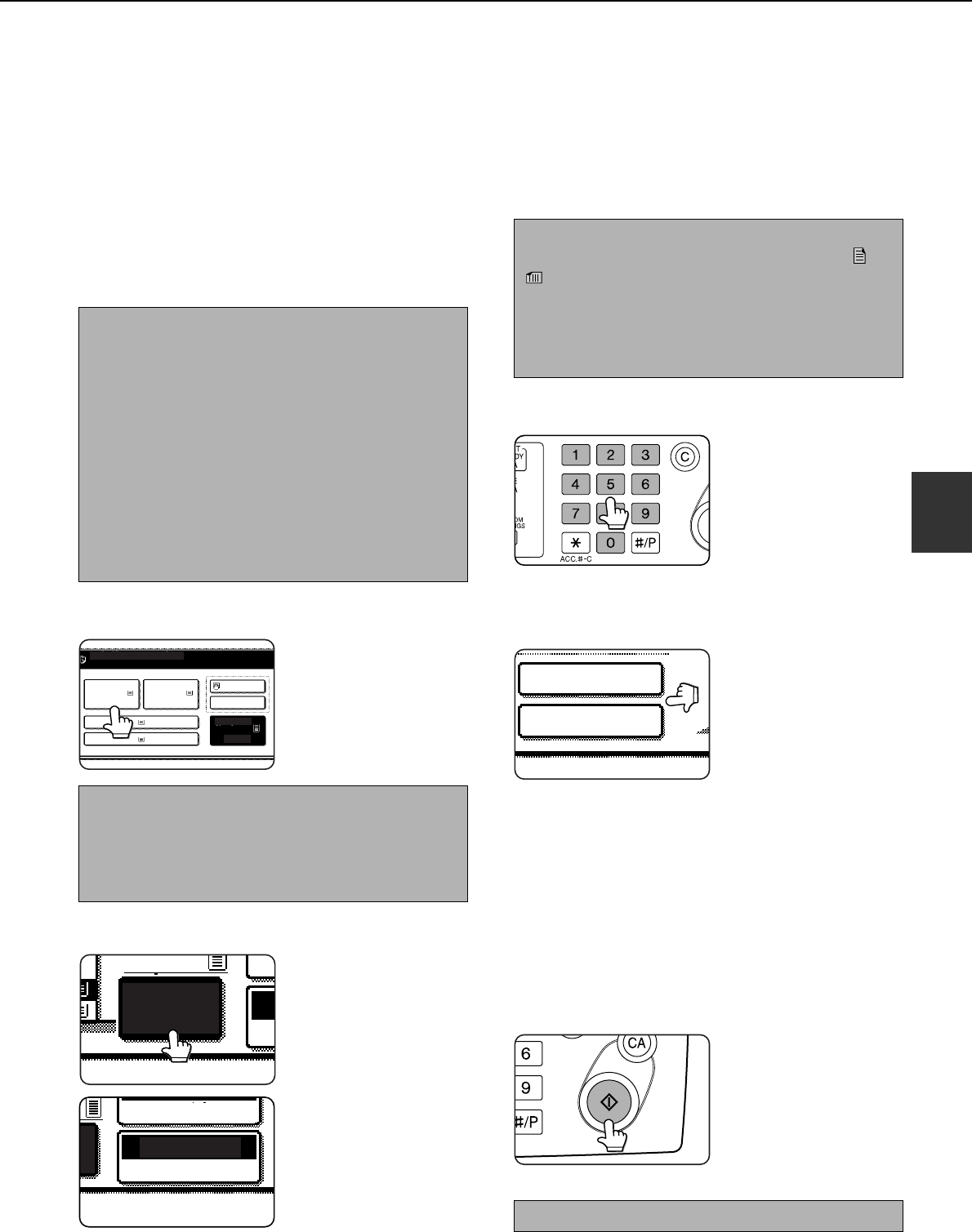
- REDUCTION/ENLARGEMENT/ZOOM 91
- COPY RATIO 92
- SPECIAL PAPERS 96
- CHAPTER 5 97
- OKCANCEL 99
- Original Copy 100
- Dual page copy 101
- Pamphlet copy 102
- AUTO A3 103
- PAPER SELECT 103
- Job build 104
- Tandem copy 105
- Press the [START] key 106
- Covers/inserts 107
- SPECIAL MODES 108
- COVERS/INSERTS 108
- TRANSPARENCY 108
- TAB COPYBOOK COPY 108
- (X) (Y) (Z) 110
- INSERTION 111
- Multi shot 119
- Shot number 120
- Tab copy 122
- MULTI SHOT 124
- CARD SHOTTAB COPY 124
- SIZE RESET 125
- CANCEL OK 125
- Mirror image 126
- B/W reverse 126
- STORING, USING AND DELETING 127
- JOB PROGRAMS 127
- Calling up a job program 128
- Deleting a stored job program 128
- INTERRUPTING A COPY RUN 129
- CHAPTER 6 131
- USER MAINTENANCE 132
- TROUBLESHOOTING 133
- CHAPTER 7 135
- OVERVIEW 136
- A look at the operation panel 138
- Saving files 138
- Document filing icons 139
- ORIGINAL 140
- EXPOSURE 140
- PASSWORD 142
- Print jobs 143
- Scan Save 144
- HALF TONE 145
- Touch the [SPECIAL MODES] 146
- FILE RETRIEVE 147
- USER NAME 148
- FILE OR FOLDER NAME 148
- QUICK FILE FOLDER 149
- JOB SETTINGS 150
- ■ [Send] 151
- ■ [Property change] 152
- Touch the [OK] key 153
- Touch the [MOVE] key 153
- Touch the [CANCEL] key 153
- COMPLETE 154
- CUSTOM SETTINGS 155
- ■ Programming a user name 156
- DELETE THE USER NAME? 157
- ■ Creating a custom folder 158
- DELETE THE FOLDER? 159
- USER FOLDER 1 159
- ENTERING CHARACTERS 160
- \?/"; : 161
- <> ! * 161
- CHAPTER 8 163
- SPECIFICATIONS 164
- ➢➣➢➣➢➣➢➣➢➣➢➣➢➣ 171
- PRINTED IN JAPAN 172
Powiązane produkty i podręczniki dla Kopiarki Sharp AR-M620N
 (32 strony)
 (100 strony)
(40 strony)
(28 strony)
(46 strony)
(148 strony)
(173 strony)
 (102 strony)
(12 strony)
(30 strony)
(184 strony)
(92 strony)


 (112 strony)
(52 strony)
(67 strony)
Philips SPD2519BM-00 manuály
Uživatelské manuály a uživatelské příručky pro Počítačový hardware Philips SPD2519BM-00.
Poskytujeme 1 manuály pdf Philips SPD2519BM-00 ke stažení zdarma podle typů dokumentů: Uživatelský manuál

Philips SPD2519BM-00 Uživatelský manuál (2 strany)
Značka: Philips | Kategorie: Computer hardware | Velikost: 0.40 MB |
Tabulka s obsahem
Další produkty a příručky pro Počítačový hardware Philips
| Modely | Typ Dokumentu |
|---|---|
| DR4I6B30F-17 |
Uživatelský manuál
Philips DR4I6B30F-17 User Manual,
2 stránky
|
| 221S3UCB-27 |
Uživatelský manuál
Philips 221S3UCB-27 User Manual,
2 stránky
|
| LFH0867-00 |
Uživatelský manuál
Philips LFH0867-00 User Manual,
3 stránky
|
| SGC2909-27 |
Uživatelský manuál
Philips SGC2909-27 User Manual,
2 stránky
|
| 19S1SS-00 |
Uživatelský manuál
Philips 19S1SS-00 User Manual,
3 stránky
|
| 19S1CB-00 |
Uživatelský manuál
Philips 19S1CB-00 User Manual,
3 stránky
|
| 109S4074 |
Uživatelský manuál
Philips 109S4074 User Manual,
108 stránky
|
| 190B7CS-27 |
Uživatelský manuál
Philips 190B7CS-27 User Manual,
98 stránky
|
| DVDRW620 |
Uživatelský manuál
Philips DVDRW620 User Manual,
2 stránky
|
| PPX2340-F7 |
Uživatelský manuál
Philips PPX2340-F7 User Manual,
2 stránky
|
| SHM7405-00 |
Uživatelský manuál
Philips SHM7405-00 User Manual,
1 stránky
|
| 237E3QPHSU-27 |
Uživatelský manuál
Philips 237E3QPHSU-27 User Manual,
42 stránky
|
| SE8881B-22 |
Uživatelský manuál
Philips SE8881B-22 User Manual,
12 stránky
|
| 201B45-74 |
Uživatelský manuál
Philips 201B45-74 User Manual,
130 stránky
|
| DN4S2J10C-17 |
Uživatelský manuál
Philips DN4S2J10C-17 User Manual,
2 stránky
|
| 190S5CS-27 |
Uživatelský manuál
Philips 190S5CS-27 User Manual,
89 stránky
|
| 107E51-99 |
Uživatelský manuál
Philips 107E51-99 User Manual,
128 stránky
|
| DECT2251G-17 |
Uživatelský manuál
Philips DECT2251G-17 User Manual,
2 stránky
|
| SHM6600-27 |
Uživatelský manuál
Philips SHM6600-27 User Manual,
2 stránky
|
| Brilliance LCD monitor with Ergo base USB Audio 24 |
Uživatelský manuál
Philips Brilliance LCD monitor with Ergo base USB Audio 240B1CS 24&quot;w B-line 1920x1200 - Format 1610 User Manual,
96 stránky
|
© 2020, manymanuals.pl. Wszelkie prawa zastrzeżone. | 0.036 s |
 Manymanuals.com
 Manymanuals.de
 Manymanuals.fr
 Manymanuals.it
 Manymanuals.pl
 Manymanuals.cz
 Manymanuals.es
 Manymanuals-pt.com
Komentarze do niniejszej Instrukcji