Sharp UX-S10 Dokumentacja
Przeglądaj online lub pobierz Dokumentacja dla Faksy Sharp UX-S10. Sharp UX-S10 Specifications Instrukcja obsługi
- Strona / 119
- Spis treści
- ROZWIĄZYWANIE PROBLEMÓW
- BOOKMARKI

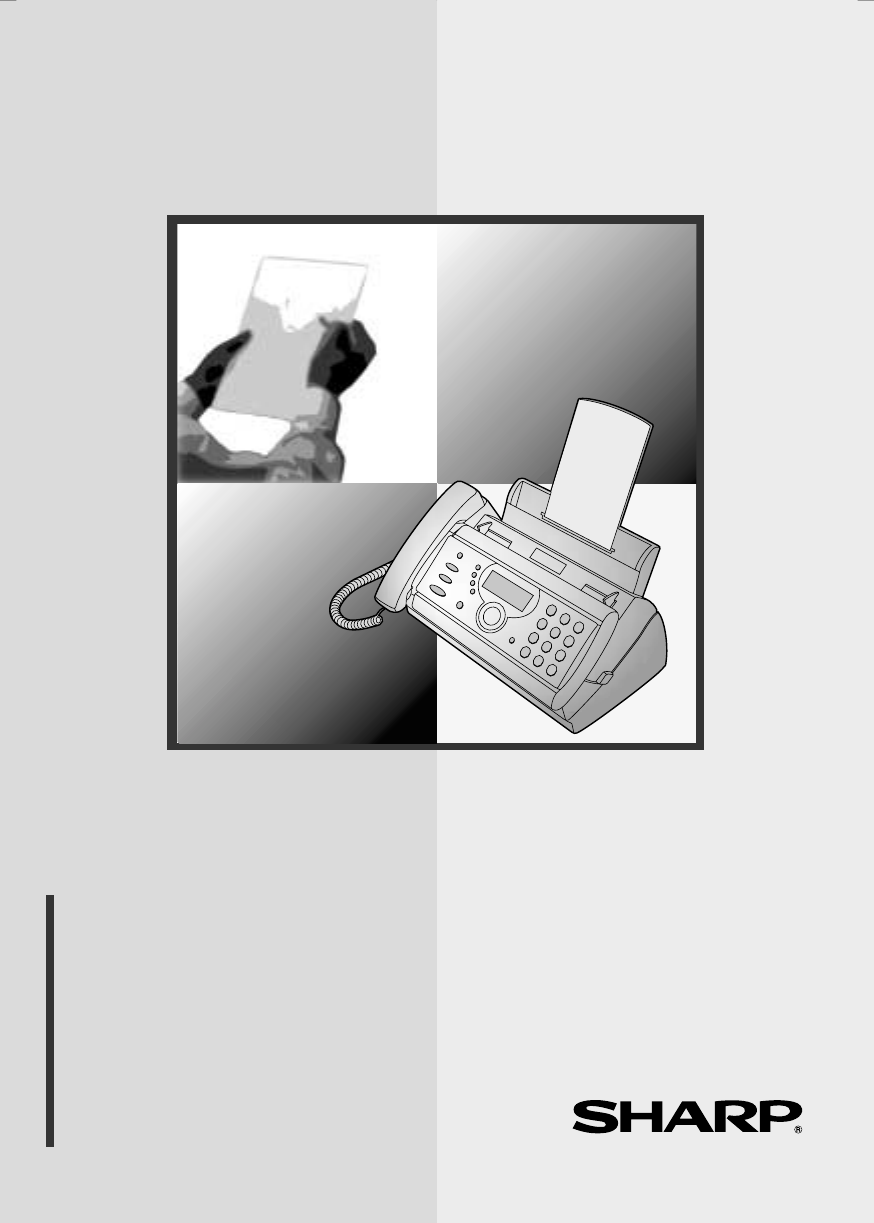
- FACSIMILE 1
- Introduction 3
- Important safety information 5
- Table of Contents 6
- A Look at the Operation Panel 8
- 01-AUG 12:00 10
- 1. Installation 11
- Connections 12
- TEL.LINE 13
- Loading the Imaging Film 15
- 5 Insert the green gears 16
- Loading Printing Paper 17
- 1 Press once and once 18
- 2 Press once and 3 times 18
- 3 Press once 18
- 4 Select the print contrast: 18
- 1 Press once and 3 times 19
- 2 Press once 19
- 7 Press 20
- Setting the Date and Time 21
- 8 Press to start the clock 22
- Setting the Reception Mode 23
- Volume Adjustment 24
- 1 Press or 25
- PBX and Display Settings 26
- Flash Select Setting for PBX 27
- Setting the Display Language 27
- Display Backlight 28
- 2. SMS Text Messaging 29
- Setup for SMS Test Messaging 30
- 1 Press and 32
- 2 Press 32
- 3 Press 32
- Sending an SMS Message 33
- FUNKTION 34
- KOPIE/HILFE/ABRUF 34
- 1 Press once and twice 35
- 2 Press once and once 35
- 5 Press 36
- START/SPEICHER 37
- Receiving SMS Messages 38
- Viewing the Outbox 40
- Printing all messages 42
- Deleting all messages 42
- AUFLÖS./ 43
- Recording an Outgoing Message 43
- Toll Saver Toll Saver 45
- 1 Press 46
- 2 The messages will play 46
- OGM only mode 49
- Transfer Function 50
- Override Ringing 53
- Remote Operations 55
- Retrieving your messages 56
- Other remote operations 59
- Recording a memo 61
- 4. Sending Faxes 62
- Loading the Document 63
- Resolution settings 64
- 4 Press 69
- 6 Press 69
- <NEW NUMBER> 70
- 1=EDIT, 2=CLEAR 70
- 2 Press once and 5 times 74
- Memory transmission 76
- If the memory becomes full 76
- Auto-Cordless Fax Control 81
- Optional Reception Settings 83
- 2 Press once and 4 times 85
- START/SPEICHE 86
- 2 Press once and twice 88
- 7. Special Functions 89
- How Caller ID operates 90
- Display messages 90
- 1 Press twice 91
- Priority Call 92
- Blocking voice calls 93
- ENTRY MODE 94
- ANTI JUNK # 94
- 1=SET, 2=CLEAR 94
- PBX operations 96
- 8. Printing Lists 97
- Transaction Report 98
- 9. Maintenance 100
- Scanning glass and rollers 101
- The housing 102
- 10. Troubleshooting 103
- Problems and Solutions 104
- General problems 106
- SMS messaging problems 107
- Messages and Signals 109
- Audible signals 111
- Clearing Paper Jams 112
- Quick Reference Guide 114
- REMOTE OPERATION CARD 117
- REMOTE COMMANDS 118
- SHARP CORPORATION 119
Podsumowanie treści
MODELUX-S10OPERATION MANUALFACSIMILE 1. Installation 2. SMS Text Messaging 3. Using the Answering Machine 4. Sending Faxes 5. Recei
8Monitoring phone conversationsWhen speaking through the handset, you can press to allow a third person to listen to the conversation through the sp
989. MaintenancePrint headClean the print head frequently to ensure optimum printing performance.Note: Remove the paper from the paper tray before cl
Maintenance999. Maintenance4 Place the imaging film back in the print compartment.5 Rotate the front gear until the film is taut, and then close the o
Maintenance1002 Flip up the green levers on each side of the white roller.3 Wipe the scanning glass (under the white roller) and rollers with a cotton
10110. Trouble-shooting10. TroubleshootingProblems and SolutionsLine errorProblem SolutionLINE ERROR appears in the display.Try the transaction again
Problems and Solutions102Dialling and transmission problemsProblem SolutionNo dial tone when you pick up the handset or press the key.• Make sure t
Problems and Solutions10310. Trouble-shootingReception and copying problemsProblem SolutionThe power is on, but no reception takes place.• Make sure t
Problems and Solutions104Reception/copying is interrupted.• If reception or copying takes place continuously for a long time, the print head may overh
Problems and Solutions10510. Trouble-shootingSMS messaging problems Problem SolutionYou cannot send SMS messages.• If you are using a carrier other th
Problems and Solutions106When sending an SMS message, OVER 20 DIGITS appears when you enter the number of the recipient.• The maximum number of digits
Messages and Signals10710. Trouble-shootingMessages and SignalsDisplay messagesNote: If you have turned on the Caller ID function, see page 88 for dis
91. Installation1. InstallationUnpacking ChecklistBefore setting up, make sure you have all of the following items.♦ If any are missing, contact your
Messages and Signals108LINE ERROR Transmission or reception was not successful. Press the STOP key to clear the message and then try again. If the err
Messages and Signals10910. Trouble-shootingAudible signalsOVER HEAT The print head has overheated. Operation can be continued after it cools. If overh
Clearing Paper Jams110Clearing Paper JamsClearing a jammed documentIf the original document doesn’t feed properly during transmission or copying, or D
Clearing Paper Jams11110. Trouble-shooting1 Open the operation panel (press ➊).2 Gently pull the jammed paper out of the machine, making sure no torn
112Quick Reference GuideSending FaxesPlace your document (up to 10 pages) face down in the document feeder.Normal Dialling 1.Lift the handset or press
113AA.M. reception mode, 21, 42Anti Junk Fax, 92Audible signals, 109Auto-dial numbersStoring, 42, 66Using, 69CCaller ID, 87-91Caller ID List, 95Contra
114PPaper jams, clearing, 110-111Paper tray extension, 12Paper, loading, 15PBX Connection, 24Polling, 93Power cord, 10Print contrast setting, 16Print
1. Call your fax from a touch-tone telephone, and press # when the outgoing message begins. 2. Enter your remote code: . 3. Pres
REMOTE COMMANDS• FAX RECEPTION MODES A.M. mode... 81#FAX mode... 82#TEL mode... 83#TE
GEDRUCKT IN THAILAND(TINSG4287XHTA)SHARP ELECTRONICS (EUROPE) GMBHSonninstraße 3, 20097 Hamburg, Germany Phone: (040) 2376-0SHARP CORPORATIONall.book
Connections10ConnectionsConnecting the handsetConnect the handset as shown and place it on the handset rest.♦ The ends of the handset cord are identic
Connections111. InstallationConnecting the telephone line cordInsert one end of the line cord into the socket on the back of the machine marked TEL. L
Connections12Attach the paper tray and paper tray extensionAttach the paper tray and paper tray extension.Note: The paper tray extension has a top sid
Loading the Imaging Film131. InstallationLoading the Imaging FilmYour fax uses a roll of imaging film to create printed text and images. The print hea
Loading the Imaging Film144 Remove the new roll of imaging film from its packaging.• Cut the band that holds the rolls together.5 Insert the green gea
Loading Printing Paper151. Installation1 Fan the paper, and then tap the edge against a flat surface to even the stack.• Make sure the stack edges are
Loading Printing Paper16Print contrast settingYour fax has been set at the factory to print at normal contrast. If desired, you can change the print c
Entering Your Name and Fax Number171. InstallationEntering Your Name and Fax NumberBefore you begin sending faxes, enter your name and fax (telephone)
CAUTION:For a complete electrical disconnection pull out the mains plug. VORSICHT:Zur vollständigen elektrischen Trennung vom Netz den Netzstecker zie
Entering Your Name and Fax Number185 Press to enter the fax number in memory.6 Enter your name by pressing number keys for each letter as shown in t
Setting the Date and Time191. InstallationSetting the Date and TimeThe date and time appear in the display and are printed at the top of every page yo
Setting the Date and Time205 Enter a two-digit number for the month (“01” for January, “02” for February, “12” for December, etc.).Example: January
Setting the Reception Mode211. InstallationSetting the Reception ModeYour fax has the following four modes for receiving incoming faxes. Note: SMS mes
Volume Adjustment22Volume AdjustmentYou can adjust the volume of the speaker and ringer using the up and down arrow keys.1 Press 2 Press or until
Volume Adjustment231. Installation1 Press or . (Make sure has not been pressed and a document is not loaded in the feeder.)• The ringer will ring
PBX and Display Settings24PBX and Display SettingsPBX ConnectionIf the fax machine is connected to a PBX, you must set it for PBX operation. 1 Press
PBX and Display Settings251. InstallationFlash Select Setting for PBXIf your fax machine is connected to a PBX and the PBX uses the “Flash” method to
PBX and Display Settings264 Press or until the desired language appears in the display.5 Press .•The machine will beep and the display will change
272. SMS Text Messages2. SMS Text MessagingYour fax machine can be used to send and receive SMS (Short Message Service) text messages.Requirements:To
1IntroductionWelcome, and thank you for choosing a Sharp fax machine! The features and specifications of your new Sharp fax are shown below.This Sharp
Setup for SMS Test Messaging281 Press once and once.2 Press once and once.3 Press .4 Press to select ON.(To turn off the function, press .)
Setup for SMS Test Messaging292. SMS Text MessagesEntering your SMS center numberThe number for the ANNY WAY center has been pre-stored. If you are go
Setup for SMS Test Messaging30Specifying the carrierIf you entered a number for a second center using the previous procedure and are going to use that
Sending an SMS Message312. SMS Text MessagesSending an SMS MessageThis section explains how to write and send an SMS message. A maximum of 160 charact
Sending an SMS Message32Example: I WILL COME. = 444 1 9 444 555 555 1 222 666 6 33 ♦ To enter two letters in succession that require the same key,
Sending an SMS Message332. SMS Text Messages7 When you are ready to send the message, press . The fax machine will automatically call your SMS center
Sending an SMS Message345 Press .6 Enter the message by pressing number keys for each letter as shown in the following chart. Example: I WILL COME. =
Sending an SMS Message352. SMS Text Messages♦ When you have finished entering your message, you can check it by pressing to print it out.7 When you
Receiving SMS Messages36Receiving SMS MessagesEach time you receive an SMS message, your SMS center will call the fax machine and send the message. Th
Receiving SMS Messages372. SMS Text Messages2 Press or until the message you wish to read appears in the display.• You can press and then to d
2Display LCD display, 16 digits x 2 linesIntended use Analog public switched telephone network (CTR21) / PBXCompatibility ITU-T (CCITT) G3 modeInput d
Viewing the Outbox38When you press , the following message briefly appears:SMSINBOX IS FULLDELETE MESSAGEWhile the inbox is full, you will not be abl
Viewing the Outbox392. SMS Text Messages3 Press or to scroll through your sent messages.• If an exlamation point (!) appears next to a message, th
Printing or Deleting all Messages40Printing or Deleting all MessagesPrinting all messagesFollow these steps to print all messages in the inbox or outb
413. Answering Machine1 Press once and once.2 Press once.3 Lift the handset.(If you have already recorded a message, you can press to listen to
Operating the Answering Machine42To listen to the outgoing messageTo listen to the outgoing message, follow Steps 1 and 2 of the above procedure and t
Operating the Answering Machine433. Answering MachineNote: In A.M. mode, the machine will automatically switch to fax reception if it detects six seco
Operating the Answering Machine44Listening to received messagesIf you have received messages, the display will show the number of messages received. F
Operating the Answering Machine453. Answering MachineErasing received messagesIt is important to erase received messages after you listen to them to e
Optional Answering Machine Settings461 Press once and once.2 Press once and once.3 Press .4 Press a number from 1 to 4 to select the desired I
Optional Answering Machine Settings473. Answering Machine1 Press once and once.2 Press once and twice.3 Press .4 Press to turn on automatic
3As a part of our policy of continuous improvement, SHARP reserves the right to make design and specification changes for product improvement without
Transfer Function483 Press .4 Press to turn on OGM only mode, or to turn it off.5 Press to return to the date and time display.12STOPThe display
Transfer Function493. Answering Machine4 Press the number keys to enter the transfer number.• To insert a pause between any two digits of the number,
Transfer Function504 Press and speak into the handset to record the message.• The transfer message can be up to 15 seconds long. While recording, th
Override Ringing513. Answering Machine6 Each time the machine receives an incoming message, it will call your programmed transfer number. When you ans
Override Ringing522 Press once and 3 times.3 Press .4 Press the number keys to enter a 3-digit override code.5 Press to store the override code,
Remote Operations533. Answering Machine1 Press once and once.2 Press once and twice.3 Press .4 Press the number keys to enter a 3-digit remote
Remote Operations541 Press once and once.2 Press once.3 Press once.4 Press to turn on the Toll Saver function, or to turn it off.5 Press t
Remote Operations553. Answering Machine2 Enter your remote code number and then press .• You will hear a series of beeps equal to the number of messa
Remote Operations564 When you have finished listening to your messages, you can do any of the following:• Erase all messages: Press , , and .• Repeat
Remote Operations573. Answering MachineOther remote operationsAfter listening to your messages, you can perform any of the following operations by pre
4Table of ContentsA Look at the Operation Panel 61. Installation 9Unpacking Checklist. . . . . . . . . . . . . . . . . . . . . . . . . . . . . . . .
Remote Operations58Turning the Transfer function on or offTo turn Transfer on: Press , , and on the telephone.To turn Transfer off: Press , , an
Remote Operations593. Answering MachineRecording a memoYou can record a memo for yourself or other users of the machine. The memo will be played back
604. Sending FaxesTransmittable DocumentsSize and weightThe size and weight of documents that you can load in the document feeder depend on whether y
Loading the Document614. Sending FaxesOther restrictions♦ The scanner cannot recognise yellow, greenish yellow, or light blue ink.♦ Ink, glue, and cor
Adjusting the Resolution and Contrast62Adjusting the Resolution and ContrastIf desired, you can adjust the resolution and contrast before sending a do
Adjusting the Resolution and Contrast634. Sending FaxesNote: In order to transmit in SUPER FINE resolution, the receiving fax machine must also have t
Sending a Fax by Normal Dialling641 Load the document(s).• If desired, press to set the resolution and/or contrast.2 Pick up the handset or press .
Sending a Fax by Normal Dialling654. Sending Faxes4 Wait for the connection. Depending on the setting of the receiving machine, you will either hear a
Sending a Fax by Automatic Dialling66Sending a Fax by Automatic DiallingYou can store up to 60 fax, phone, or SMS numbers in the machine for automatic
Sending a Fax by Automatic Dialling674. Sending Faxes4 Press .5 Enter a name by pressing number keys for each letter as shown in the chart below. Up t
Table of Contents55. Receiving Faxes 75Using TEL/FAX Mode . . . . . . . . . . . . . . . . . . . . . . . . . . . . . . . . . . . .75Using A.M. Mode .
Sending a Fax by Automatic Dialling68Editing and clearing auto-dial numbersIf you need to make changes to a previously stored auto-dial number, or cle
Sending a Fax by Automatic Dialling694. Sending Faxes8 Press .9 Return to Step 2 to edit or clear another number, or press to return to the date and
Sending a Fax by Automatic Dialling70Sending a fax by Direct Keypad DiallingYou can also enter a full number with the number keys and then press the
Sending a Fax by Automatic Dialling714. Sending Faxes1 If you are sending a fax, load the document(s).• If desired, press to set the resolution and/
Sending a Fax by Automatic Dialling72♦ To stop automatic redialling, press .♦ Under certain conditions (for example if a person answers the call on a
Sending a Fax From Memory734. Sending FaxesSending a Fax From MemoryYou can scan a document into the fax’s memory and send the document from memory. T
Sending a Fax From Memory74Memory transmissionYou can also send a fax through memory when sending to a single location. This is convenient when sendin
755. Receiving Faxes5. Receiving FaxesUsing TEL/FAX ModeTEL/FAX01-AUG 12:00To select TEL/FAX mode, press until TEL/FAX is selected in the display.
Using A.M. Mode762 Press once and 3 times.3 Press once.4 Enter a number as follows for the desired duration: 5 Press to return to the date and
Using FAX Mode775. Receiving FaxesWhen the reception mode is set to FAX, the fax machine will automatically answer all calls on one ring and receive i
6 keyPress this key to listen to the line and fax tones through the speaker when faxing a document. This key also functions as a delete key when compo
Using TEL Mode782 Press once.3 Press once.4 Enter the desired number of rings (any number from 1 to 4).Example: 3 rings 5 Press to return to the
Auto-Cordless Fax Control (answering with an extension phone in TEL mode)795. Receiving Faxes1 When the fax machine rings, pick up the handset.2 If yo
Auto-Cordless Fax Control (answering with an extension phone in TEL mode)801 Answer the extension phone when it rings.2 If you hear a soft fax tone, w
Optional Reception Settings815. Receiving FaxesOptional Reception SettingsFax Signal ReceiveYour fax will automatically begin reception if you hear a
Optional Reception Settings823 Press once.4 Press to turn on the function, or to turn it off. 5 Press to return to the date and time display.1
Optional Reception Settings835. Receiving FaxesReception RatioThe fax has been set at the factory to automatically reduce the size of received documen
Substitute Reception to Memory84Substitute Reception to MemoryIn situations where printing is not possible, such as when your fax runs out of paper, t
856. MakingCopies6. Making CopiesYour fax machine can also be used to make copies. Single and multiple copies (up to 99 per original) can be made, en
Making Copies861 Press once and once.2 Press once and twice.3 Press once.4 Press to set copy cut-off to YES (the remaining part of the docu
877. Special Functions7. Special FunctionsCaller ID (Requires Subscription to Service)If you subscribe to a caller identification service from your t
7UP and DOWN arrow keysEnlarge/reduce setting: When making a copy of a document, press these keys to select an enlarge/reduce setting. Volume setting:
Caller ID (Requires Subscription to Service)88How Caller ID operatesWhen you receive a call, the name and phone number of the caller will alternately
Caller ID (Requires Subscription to Service)897. Special FunctionsViewing the Caller ID listIf you subscribe to a Caller ID service and have turned on
Caller ID (Requires Subscription to Service)901 Press once and 3 times.2 Press once and once.3 Press once.4 Press to store a number. (To cl
Caller ID (Requires Subscription to Service)917. Special FunctionsBlocking voice callsWith Caller ID turned on, you can use the Anti Junk Fax function
Blocking Reception of Unwanted Faxes921 Press once and 3 times.2 Press once and twice.3 Press once.4 Press to store an Anti Junk number, or
Polling (Requesting a Fax Transmission)937. Special FunctionsPolling (Requesting a Fax Transmission)Polling allows you to call another fax machine and
PBX operations94PBX operationsIf your fax is connected to a PBX, you can use it to perform the following operations:Making enquiry calls: During a cal
958. Printing Lists8. Printing ListsYou can print lists showing settings and information entered in the fax machine. The lists are described below. T
Printing Lists96Transaction ReportThis report is printed out automatically after an operation is completed to allow you to check the result. Your fax
Printing Lists978. Printing ListsTransaction Report print conditionYou can change the condition under which a Transaction Report is printed out. Follo
Powiązane produkty i podręczniki dla Faksy Sharp UX-S10
 (6 strony)
(102 strony)
(100 strony)
(11 strony)
(98 strony)
(155 strony)
(166 strony)
(114 strony)
(124 strony)
(152 strony)
(92 strony)
(116 strony)
(16 strony)
(152 strony)
(6 strony)
(102 strony)
(100 strony)
(11 strony)
(98 strony)
(155 strony)
(166 strony)
(114 strony)
(124 strony)
(152 strony)
(92 strony)
(116 strony)
(16 strony)
(152 strony)
 (8 strony)
(1 strony)
(137 strony)
(8 strony)
(1 strony)
(137 strony)
© 2020, manymanuals.pl. Wszelkie prawa zastrzeżone. | 0.034 s |
 Manymanuals.com
 Manymanuals.de
 Manymanuals.fr
 Manymanuals.it
 Manymanuals.pl
 Manymanuals.cz
 Manymanuals.es
 Manymanuals-pt.com
Komentarze do niniejszej Instrukcji